> ## Documentation Index
> Fetch the complete documentation index at: https://docs.langchain.com/llms.txt
> Use this file to discover all available pages before exploring further.
# Find and fix your agent's failures with LangSmith Engine
> Automatically detect and resolve recurring issues in your tracing project using the LangSmith Engine.
The LangSmith Engine turns your traces into a continuous improvement workflow. It surfaces recurring issues, diagnoses their root cause, and guides you through fixing them and preventing them from coming back.
Each issue moves through a closed loop: a recurring failure is detected in your traces → the root cause is diagnosed → a fix is proposed → an evaluator is deployed to catch regressions → if the issue resurfaces after being closed, it is automatically reopened.
For each issue, LangSmith Engine surfaces the relevant traces, proposes a fix, generates a custom evaluator to prevent regressions, and creates custom ground truth [dataset examples](/langsmith/manage-datasets) from the production trace inputs for offline evaluation.
## What you can do
Apply the proposed fix by opening a pull request in your connected repository.
Generate custom ground truth dataset examples from production traces for offline evaluation.
Deploy a custom evaluator to catch regressions in future traces.
## Set up the LangSmith Engine
Setting up the LangSmith Engine is a two-step process: an [Organization Admin](/langsmith/rbac#organization-admin) first enables Engine for the workspace, then any user can configure Engine for each tracing project.
### Enable Engine for your organization
You must be an [**Organization Admin**](/langsmith/rbac#organization-admin) to enable Engine. To find your admins, open **Settings**, select **Members** under **Access and Security**, and look for members with the **Organization Admin** role.
In the [LangSmith console](https://smith.langchain.com?utm_source=docs\&utm_medium=cta\&utm_campaign=langsmith-signup\&utm_content=langsmith-engine), click **Settings** in the bottom-left corner, then select **Engine enablement** under **Engine**.
Toggle **Enable Engine** on and acknowledge the AI features terms of use:
> LangSmith AI features, powered by LangChain-managed inference, bring intelligence to your observability workflow. With LangSmith AI enabled, your team can surface issues faster, run smarter evaluations, and build more reliable LLM applications. By enabling this feature, your organization's trace data will be processed using LangChain-managed LLM keys. Subject to our Terms of Service.
Once Engine is enabled, any team member in your organization can set it up for their tracing projects.
If you want to turn off Engine, toggle the same setting to off. This will stop all automatic runs of Engine and discontinue future billing in your account.
### Set a monthly spend limit
Organization Admins can set an org-wide monthly spend limit for the number of LangChain Compute Units (LCUs) their organization can spend on Engine each month. When the organization reaches the monthly limit, LangSmith pauses new Engine runs until the limit is raised or the next monthly billing period begins.
To set a limit, open **Settings**, select **Engine enablement** under **Engine**, then enter a value under **Monthly LCU spend limit**. You can enter the limit in LCU or USD. The values stay in sync at a rate of 1 LCU = \$1.50.
Leave the limit blank to allow unlimited Engine spend. To stop Engine entirely, use the **Enable Engine** toggle above the spend limit setting. Once Engine is running, you can see your monthly LCU spend on Engine per workspace on the Engine enablement page.
### Set up Engine for a tracing project
In the [LangSmith console](https://smith.langchain.com?utm_source=docs\&utm_medium=cta\&utm_campaign=langsmith-signup\&utm_content=langsmith-engine), navigate to **Tracing** in the UI sidebar, select a project, then click the **Engine** tab in the project navigation.
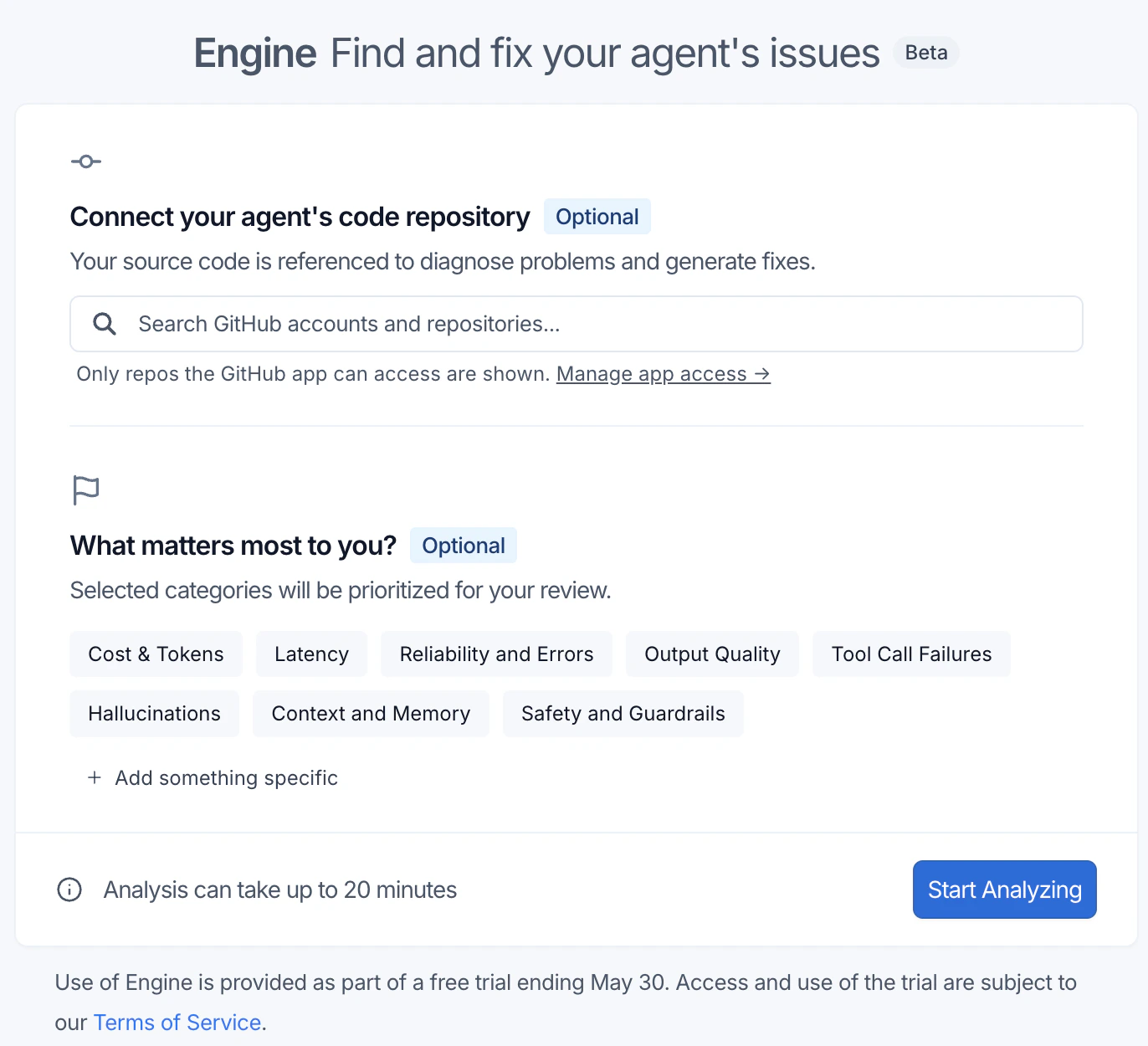
Although optional, connecting a GitHub repository is recommended. LangSmith Engine uses your source code to diagnose problems, generate higher-quality fixes, and open pull requests directly from issues. Under **Connect your agent's code repository**, select a repository. Only repositories the GitHub app can access are shown. Click **Manage app access →** to update permissions. You can update the **Code repository** at any time from the [**Engine settings**](#configure-the-langsmith-engine).
Under **What matters most to you?**, select categories to prioritize for your review (for example, **Tool Call Failures** or **Latency**). Click **+ Add something specific** to describe a custom concern. You can update **Priorities** at any time from the [**Engine settings**](#configure-the-langsmith-engine).
Click **Start Analyzing**. LangSmith Engine can take up to 20 minutes to analyze your project’s traces and begin making suggestions. While you wait, you can configure webhooks in the [settings panel](#configure-the-langsmith-engine) to be notified when issues of different priority levels are found.
Before surfacing issues, LangSmith Engine generates an agent overview document describing your project's purpose, architecture, and key metrics based on your traces. Review and edit the document, then click **Accept & Continue** to proceed. If the overview is inaccurate, edit it before continuing, since the LangSmith Engine uses it as context for all analysis, so accuracy here affects the quality of detected issues. You can update it at any time from the [**Engine settings**](#configure-the-langsmith-engine).
 ## Browse and filter issues
Once setup is complete, the **Engine** tab displays a list of automatically detected issues in the left panel. Each entry shows a title, a short description, the number of contributing traces, and how recently the issue was observed.
At the top of the list, you can click:
* **Filter issues** icon to filter by **Priority**, **Status** and **Tags**.
* **Sort issues** icon to sort by **Severity**, **Last Updated**, and **Created**.
* **Engine settings** gear icon to [configure the LangSmith Engine](#configure-the-langsmith-engine).
Click any issue to display its details in the right panel.
If no issues appear after setup completes, the LangSmith Engine found no recurring patterns in the analyzed traces. Try checking back after more traces have been collected.
## Review an issue
Click any issue in the list to open its detail panel. At the top, a diagnosis describes the problem and its impact.
The **Linked traces** section lists the traces that support the diagnosis. Click any trace to open its detail panel. For more information, see [Manage a trace](/langsmith/manage-trace). Click [**Add offline examples**](#add-offline-examples) at the bottom right of this section to generate custom ground truth [dataset examples](/langsmith/manage-datasets) from the production trace inputs for offline evaluation.
The **Proposed Fix** section describes the issue and suggests how to address it, which may include specific code or prompt changes if a repository is connected.
The **Suggested Evaluator** section provides a ready-to-use evaluator you can deploy to catch the issue in future traces. If the evaluator fires after you close an issue, the issue is automatically reopened to indicate the problem persists.
The **Offline Examples** section proposes dataset examples generated from the production trace inputs that triggered the issue, for use in offline evaluation.
## Take action on an issue
### Change priority
Select **Low**, **Medium** or **High** from the priority dropdown to update an issue's priority. You can optionally provide a reason, which feeds back into the LangSmith Engine to help improve its analysis over time.
### Create an evaluator
1. Click **Create Evaluator** to deploy the suggested evaluator for the issue.
2. Configure the name, run filters, and sampling rate. Edit the code directly in the built-in editor if needed.
3. Enable **Apply to past runs** to see how many historical traces the evaluator would have flagged before deploying.
For more information, see [Evaluators](/langsmith/evaluators).
### Add offline examples
1. Click **Add offline examples** at the bottom of the **Linked traces** list to open the **Add as offline example** dialog.
2. Review each trace. The dialog shows the input, the wrong output the agent produced, and the proposed expected output as a custom ground truth example.
3. Click **Add to Dataset** to add them directly, or click **Edit in annotation queue** to review them first.
4. In the annotation queue, each example shows the run inputs alongside reference outputs proposed by the LangSmith Engine, structured as named [assertions](/langsmith/assertions) generated from trace analysis. Each assertion is a short claim describing what a correct answer should or shouldn't include. Edit the assertions as needed, add new ones with **+ Add assertion**, then click **Add to Dataset & Continue** to work through each example.
For more information, refer to [Manage datasets](/langsmith/manage-datasets), [Use annotation queues](/langsmith/annotation-queues), and [Use assertions](/langsmith/assertions), .
### Copy the issue prompt
Click the **Copy Fix Context** copy icon to save a prompt with the issue details to your clipboard. You can then use it with an LLM or coding assistant to help resolve the issue.
### Open a pull request
Click **Open PR** to open a GitHub pull request in your connected repository with the proposed fix applied. Once a pull request is open, the button changes to **View PR**. LangSmith Engine can propose code changes to any connected repository, including agents built with [Deep Agents](/oss/python/deepagents/overview), [LangChain](/oss/python/langchain/overview), and [LangGraph](/oss/python/langgraph/overview).
### Resolve or ignore an issue
Click **Resolve** to mark an issue as fixed, or **Ignore** to dismiss it as not real or not worth fixing. You can optionally provide a reason for either action.
### Reopen an issue
To reopen a previously closed issue, open the issue detail view and click **Reopen**.
## List issues via the CLI
You can list issues programmatically using the [LangSmith CLI](/langsmith/cli).
```bash theme={"theme":{"light":"catppuccin-latte","dark":"catppuccin-mocha"}}
# List issues for a project
langsmith project issues list --project
```
## Configure the LangSmith Engine
LangSmith Engine uses **LangChain-managed inference** exclusively. Bring Your Own Key (BYOK) is not supported; you cannot supply your own provider API keys for Engine.
Within a tracing project, click the **Engine settings** gear icon on the **Engine** tab to open the **Edit Engine Settings** panel. From here you can configure:
* **Agent Overview**: Edit your agent overview document to keep LangSmith Engine's understanding of your project accurate as your application evolves.
* **Priorities**: Areas the LangSmith Engine should pay extra attention to when scanning traces. Changes take effect on the next scan.
* **Code repository**: Update the connected GitHub repository or subfolder.
* **Webhooks**: Configure webhooks to be notified when new issues are found at different priority levels. See [Engine webhook events](/langsmith/engine-webhooks) for the event payload reference.
* **Pause Engine**: The LangSmith Engine scans your traces every 6 hours by default. Click **Pause** to suspend scanning or **Resume** to resume scanning.
* **Delete all issues**: This action cannot be undone. All issues and settings will be permanently removed.
***
## Browse and filter issues
Once setup is complete, the **Engine** tab displays a list of automatically detected issues in the left panel. Each entry shows a title, a short description, the number of contributing traces, and how recently the issue was observed.
At the top of the list, you can click:
* **Filter issues** icon to filter by **Priority**, **Status** and **Tags**.
* **Sort issues** icon to sort by **Severity**, **Last Updated**, and **Created**.
* **Engine settings** gear icon to [configure the LangSmith Engine](#configure-the-langsmith-engine).
Click any issue to display its details in the right panel.
If no issues appear after setup completes, the LangSmith Engine found no recurring patterns in the analyzed traces. Try checking back after more traces have been collected.
## Review an issue
Click any issue in the list to open its detail panel. At the top, a diagnosis describes the problem and its impact.
The **Linked traces** section lists the traces that support the diagnosis. Click any trace to open its detail panel. For more information, see [Manage a trace](/langsmith/manage-trace). Click [**Add offline examples**](#add-offline-examples) at the bottom right of this section to generate custom ground truth [dataset examples](/langsmith/manage-datasets) from the production trace inputs for offline evaluation.
The **Proposed Fix** section describes the issue and suggests how to address it, which may include specific code or prompt changes if a repository is connected.
The **Suggested Evaluator** section provides a ready-to-use evaluator you can deploy to catch the issue in future traces. If the evaluator fires after you close an issue, the issue is automatically reopened to indicate the problem persists.
The **Offline Examples** section proposes dataset examples generated from the production trace inputs that triggered the issue, for use in offline evaluation.
## Take action on an issue
### Change priority
Select **Low**, **Medium** or **High** from the priority dropdown to update an issue's priority. You can optionally provide a reason, which feeds back into the LangSmith Engine to help improve its analysis over time.
### Create an evaluator
1. Click **Create Evaluator** to deploy the suggested evaluator for the issue.
2. Configure the name, run filters, and sampling rate. Edit the code directly in the built-in editor if needed.
3. Enable **Apply to past runs** to see how many historical traces the evaluator would have flagged before deploying.
For more information, see [Evaluators](/langsmith/evaluators).
### Add offline examples
1. Click **Add offline examples** at the bottom of the **Linked traces** list to open the **Add as offline example** dialog.
2. Review each trace. The dialog shows the input, the wrong output the agent produced, and the proposed expected output as a custom ground truth example.
3. Click **Add to Dataset** to add them directly, or click **Edit in annotation queue** to review them first.
4. In the annotation queue, each example shows the run inputs alongside reference outputs proposed by the LangSmith Engine, structured as named [assertions](/langsmith/assertions) generated from trace analysis. Each assertion is a short claim describing what a correct answer should or shouldn't include. Edit the assertions as needed, add new ones with **+ Add assertion**, then click **Add to Dataset & Continue** to work through each example.
For more information, refer to [Manage datasets](/langsmith/manage-datasets), [Use annotation queues](/langsmith/annotation-queues), and [Use assertions](/langsmith/assertions), .
### Copy the issue prompt
Click the **Copy Fix Context** copy icon to save a prompt with the issue details to your clipboard. You can then use it with an LLM or coding assistant to help resolve the issue.
### Open a pull request
Click **Open PR** to open a GitHub pull request in your connected repository with the proposed fix applied. Once a pull request is open, the button changes to **View PR**. LangSmith Engine can propose code changes to any connected repository, including agents built with [Deep Agents](/oss/python/deepagents/overview), [LangChain](/oss/python/langchain/overview), and [LangGraph](/oss/python/langgraph/overview).
### Resolve or ignore an issue
Click **Resolve** to mark an issue as fixed, or **Ignore** to dismiss it as not real or not worth fixing. You can optionally provide a reason for either action.
### Reopen an issue
To reopen a previously closed issue, open the issue detail view and click **Reopen**.
## List issues via the CLI
You can list issues programmatically using the [LangSmith CLI](/langsmith/cli).
```bash theme={"theme":{"light":"catppuccin-latte","dark":"catppuccin-mocha"}}
# List issues for a project
langsmith project issues list --project
```
## Configure the LangSmith Engine
LangSmith Engine uses **LangChain-managed inference** exclusively. Bring Your Own Key (BYOK) is not supported; you cannot supply your own provider API keys for Engine.
Within a tracing project, click the **Engine settings** gear icon on the **Engine** tab to open the **Edit Engine Settings** panel. From here you can configure:
* **Agent Overview**: Edit your agent overview document to keep LangSmith Engine's understanding of your project accurate as your application evolves.
* **Priorities**: Areas the LangSmith Engine should pay extra attention to when scanning traces. Changes take effect on the next scan.
* **Code repository**: Update the connected GitHub repository or subfolder.
* **Webhooks**: Configure webhooks to be notified when new issues are found at different priority levels. See [Engine webhook events](/langsmith/engine-webhooks) for the event payload reference.
* **Pause Engine**: The LangSmith Engine scans your traces every 6 hours by default. Click **Pause** to suspend scanning or **Resume** to resume scanning.
* **Delete all issues**: This action cannot be undone. All issues and settings will be permanently removed.
***
[Connect these docs](/use-these-docs) to Claude, VSCode, and more via MCP for real-time answers.
[Edit this page on GitHub](https://github.com/langchain-ai/docs/edit/main/src/langsmith/engine.mdx) or [file an issue](https://github.com/langchain-ai/docs/issues/new/choose).