> ## Documentation Index
> Fetch the complete documentation index at: https://docs.langchain.com/llms.txt
> Use this file to discover all available pages before exploring further.
# Configure prompt settings
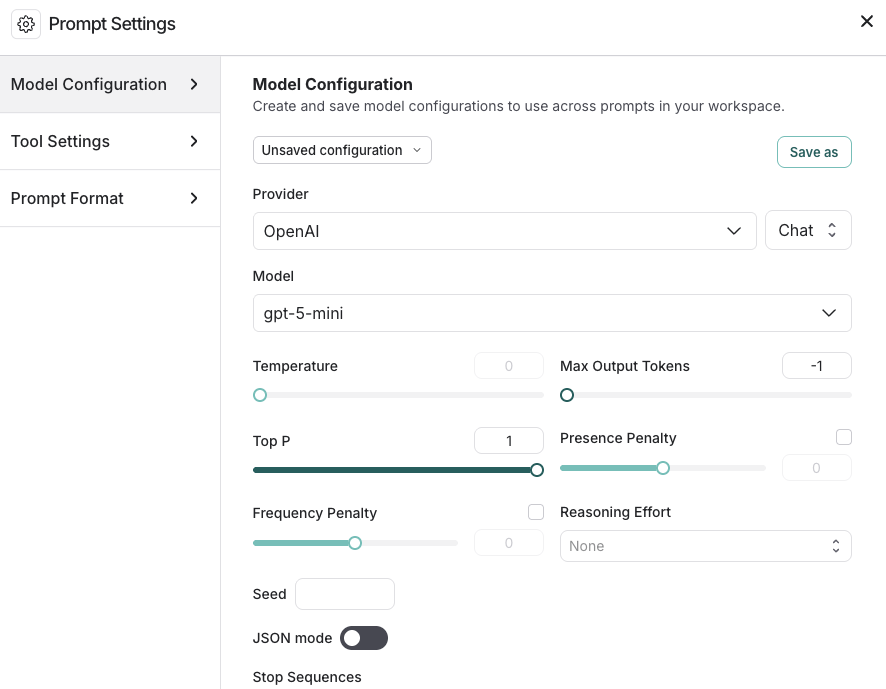
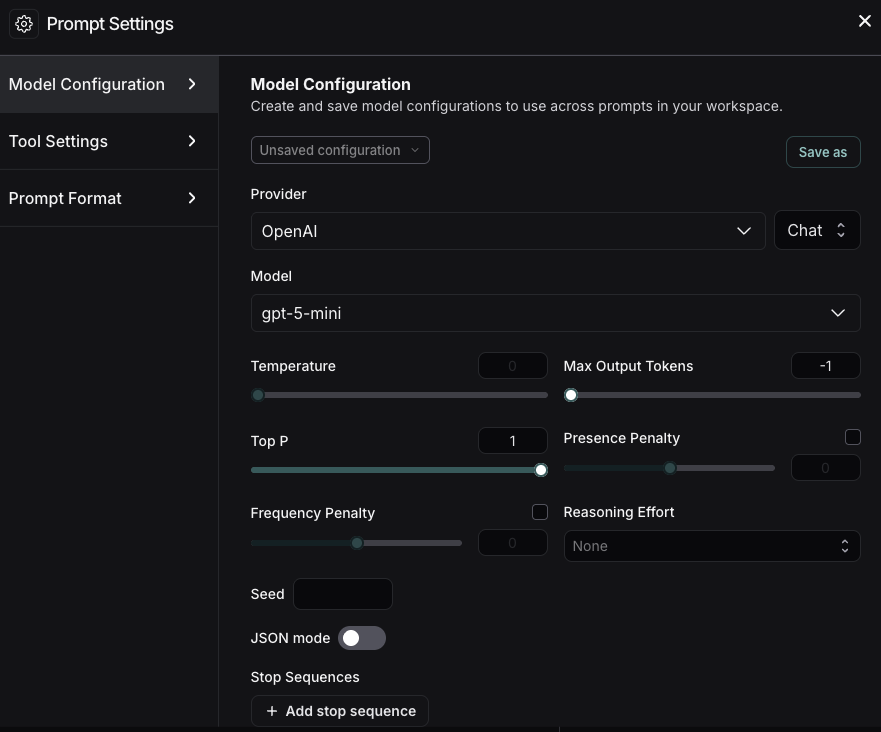
The [Playground](/langsmith/prompt-engineering-concepts#playground) enables you to control various settings for your prompts. The **Prompt Settings** window contains:
* [Model configuration](#model-configurations)
* [Tool settings](#tool-settings)
* [Prompt formatting](#prompt-formatting)
To access **Prompt Settings**:
1. Navigate to the **Playground** in the left sidebar.
2. Under the **Prompts** heading select the gear icon next to the model name, which will launch the **Prompt Settings** window.
## Model configurations
[Model configurations](/langsmith/model-configurations) define the parameters your prompt runs against. Configurations are shared across your workspace—any configuration saved here is available in other LangSmith features and visible to admins in **Settings** > **Model configurations**. For details on specific settings, refer to your model provider’s documentation (for example, [Anthropic](https://platform.claude.com/docs/en/api/messages) or [OpenAI](https://platform.openai.com/docs/api-reference/responses/create)).
### Create saved configurations
1. In the **Model Configurations** tab, adjust the model configuration as needed—you can select a [saved configuration to edit](#edit-configurations).
2. Click the **Save As** button in the top bar.
3. Enter a name and optional description for your configuration and confirm.
4. Now that you've saved the configuration, anyone in your organization's [workspace](/langsmith/administration-overview#workspaces) can access it. All saved configurations are available in the **Model Configuration** dropdown.
5. Once you have created a saved configuration, you can set it as your default, so any new prompt you create will automatically use this configuration. To set a configuration as your default, click the **Set as default** icon next to the model name in the dropdown.
### Edit configurations
1. To rename a saved configuration, or update the description, select the configuration name or description and make the necessary changes.
2. Update the current configuration's parameters as needed and click the **Save** button at the top.
### Delete configurations
1. Select the configuration you want to remove.
2. Click the trash icon to delete it.
### Extra parameters
The **Extra Parameters** field allows you to pass additional model parameters that aren't directly supported in the LangSmith interface. This is particularly useful in two scenarios:
1. When model providers release new parameters that haven't yet been integrated into the LangSmith interface. You can specify these parameters in JSON format to use them right away. For example:
```json theme={"theme":{"light":"catppuccin-latte","dark":"catppuccin-mocha"}}
{
"reasoning_effort": "medium"
}
```
2. When troubleshooting parameter-related errors in the Playground, such as:
```
TypeError: AsyncCompletions.create() got an unexpected keyword argument 'max_concurrency'
```
If you receive an error about unnecessary parameters (which is more common when using [LangChain JS](/oss/python/langchain/overview) for run tracing), you can use this field to remove the extra parameters.
## Tool settings
[*Tools*](/langsmith/prompt-engineering-concepts#tools) enable your LLM to perform tasks like searching the web, looking up information, and so on. In the **Tools Settings** tab, you can manage the ways your LLM uses and accesses the tools you have defined in your prompt, including:
* **Parallel Tool Calls**: Calling multiple tools in parallel when appropriate. This allows the model to gather information from different sources simultaneously. (Dependent on model support for parallel execution.)
* **Tool Choice**: Select the tools that the model can access. For more details, refer to [Use tools in a prompt](/langsmith/use-tools).
To manage which tools are available in your workspace, including enabling, disabling, and editing tools across prompts, refer to [Manage tools with the registry](/langsmith/use-tools#manage-tools-with-the-registry).
## Prompt formatting
The **Prompt Format** tab allows you to specify:
* The **Prompt type**. For details on chat and completion prompts, refer to [Prompt engineering](/langsmith/prompt-engineering-concepts#prompt-types) concepts.
* The **Template format**. For details on prompt templating and using variables, refer to [F-string vs. mustache](/langsmith/prompt-engineering-concepts#f-string-vs-mustache).
***
[Connect these docs](/use-these-docs) to Claude, VSCode, and more via MCP for real-time answers.
[Edit this page on GitHub](https://github.com/langchain-ai/docs/edit/main/src/langsmith/managing-model-configurations.mdx) or [file an issue](https://github.com/langchain-ai/docs/issues/new/choose).