> ## Documentation Index
> Fetch the complete documentation index at: https://docs.langchain.com/llms.txt
> Use this file to discover all available pages before exploring further.
# Set up online code evaluators
**Recommended Reading**
Before diving into this content, it might be helpful to read the following:
* Running [online evaluations](/langsmith/evaluation-concepts#online-evaluations)
Online evaluations provide real-time feedback on your production traces. This is useful to continuously monitor the performance of your application—to identify issues, measure improvements, and ensure consistent quality over time.
Code evaluators allow you to write an evaluator in Python or JavaScript directly in LangSmith. Often used for validating structure or statistical properties of your data.
When an online evaluator runs on any run within a trace, the trace will be auto-upgraded to [extended data retention](/langsmith/administration-overview#data-retention-auto-upgrades). This upgrade will impact trace pricing, but ensures that traces meeting your evaluation criteria (typically those most valuable for analysis) are preserved for investigation.
## View online evaluators
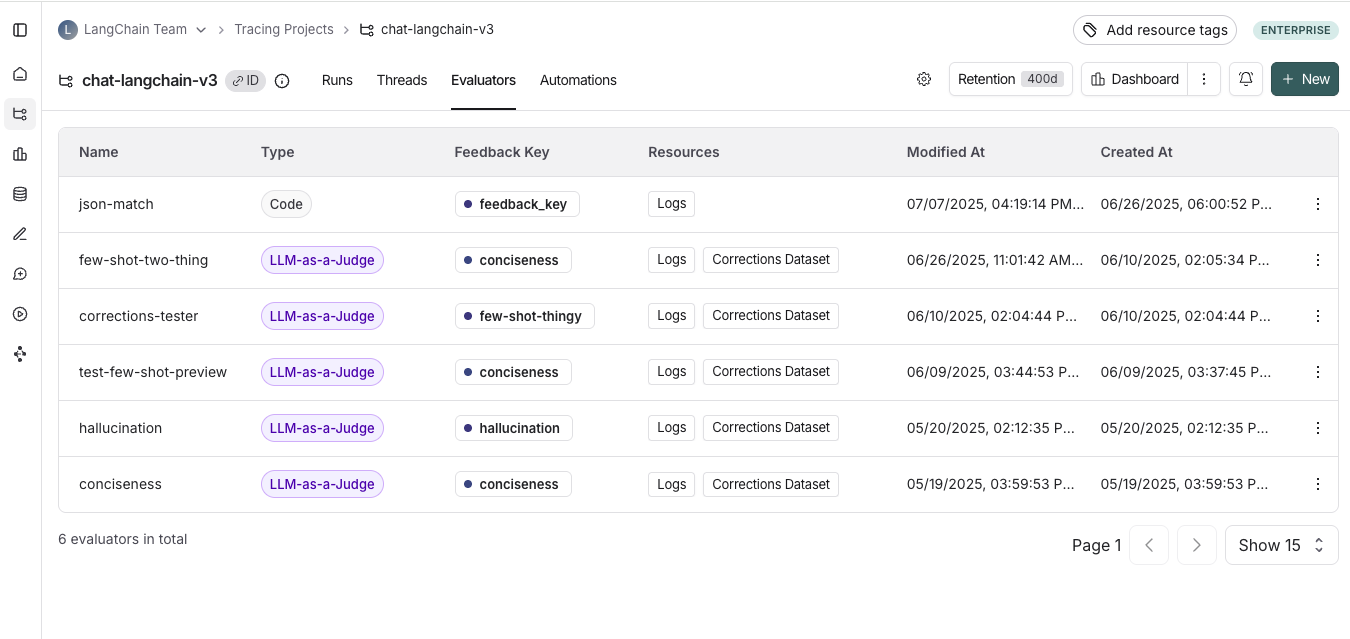
Navigate to the **Tracing** page and select a tracing project. To view existing online evaluators for that project, click on the **Evaluators** tab.
 ## Configure online evaluators
### 1. Navigate to online evaluators
Navigate to the **Tracing** page and select a tracing project. Click the **Evaluators** tab, then click **+ Evaluator** to open the **Add Evaluator** panel. Select **Code Evaluator** under **Create from scratch** to build a new evaluator, or select an existing code evaluator from your workspace under **Attach an existing evaluator**.
### 2. Name your evaluator
Provide a name for your evaluator. This name will be used when referencing the evaluator in your code, and will also be the name of the feedback that is generated by this evaluator.
### 3. Create a filter
For example, you may want to apply specific evaluators based on:
* Runs where a [user left feedback](/langsmith/attach-user-feedback) indicating the response was unsatisfactory.
* Runs that invoke a specific tool call. See [filtering for tool calls](/langsmith/filter-traces-in-application#example-filtering-for-tool-calls) for more information.
* Runs that match a particular piece of metadata (e.g. if you log traces with a `plan_type` and only want to run evaluations on traces from your enterprise customers). See [adding metadata to your traces](/langsmith/add-metadata-tags) for more information.
Filters on evaluators work the same way as when you're filtering traces in a project. For more information on filters, you can refer to [Filter traces](/langsmith/filter-traces-in-application).
It's often helpful to inspect runs as you're creating a filter for your evaluator. With the evaluator configuration panel open, you can inspect runs and apply filters to them. Any filters you apply to the runs table will automatically be reflected in filters on your evaluator.
### 4. (Optional) Configure a sampling rate
Configure a sampling rate to control the percentage of filtered runs that trigger the automation action. For example, to control costs, you may want to set a filter to only apply the evaluator to 10% of traces. In order to do this, you would set the sampling rate to 0.1.
### 5. (Optional) Apply rule to past runs
Apply rule to past runs by toggling the **Apply to past runs** and entering a "Backfill from" date. This is only possible upon rule creation. Note: the backfill is processed as a background job, so you will not see the results immediately.
In order to track progress of the backfill, you can view logs for your evaluator by heading to the **Evaluators** tab within a tracing project and clicking the Logs button for the evaluator you created. Online evaluator logs are similar to [automation rule logs](/langsmith/rules#view-logs-for-your-automations).
* Add an evaluator name
* Optionally filter runs that you would like to apply your evaluator on or configure a sampling rate.
* Select **Apply Evaluator**
## Write your evaluation function
**Code evaluators restrictions.**
**Allowed Libraries**: You can import all standard library functions, as well as the following public packages:
```
numpy (v2.2.2): "numpy"
pandas (v1.5.2): "pandas"
jsonschema (v4.21.1): "jsonschema"
scipy (v1.14.1): "scipy"
sklearn (v1.26.4): "scikit-learn"
```
**Network Access**: You cannot access the internet from a code evaluator.
Code evaluators must be written inline. We recommend testing locally before setting up your code evaluator in LangSmith.
In the UI, you will see a panel that lets you write your code inline, with some starter code:
## Configure online evaluators
### 1. Navigate to online evaluators
Navigate to the **Tracing** page and select a tracing project. Click the **Evaluators** tab, then click **+ Evaluator** to open the **Add Evaluator** panel. Select **Code Evaluator** under **Create from scratch** to build a new evaluator, or select an existing code evaluator from your workspace under **Attach an existing evaluator**.
### 2. Name your evaluator
Provide a name for your evaluator. This name will be used when referencing the evaluator in your code, and will also be the name of the feedback that is generated by this evaluator.
### 3. Create a filter
For example, you may want to apply specific evaluators based on:
* Runs where a [user left feedback](/langsmith/attach-user-feedback) indicating the response was unsatisfactory.
* Runs that invoke a specific tool call. See [filtering for tool calls](/langsmith/filter-traces-in-application#example-filtering-for-tool-calls) for more information.
* Runs that match a particular piece of metadata (e.g. if you log traces with a `plan_type` and only want to run evaluations on traces from your enterprise customers). See [adding metadata to your traces](/langsmith/add-metadata-tags) for more information.
Filters on evaluators work the same way as when you're filtering traces in a project. For more information on filters, you can refer to [Filter traces](/langsmith/filter-traces-in-application).
It's often helpful to inspect runs as you're creating a filter for your evaluator. With the evaluator configuration panel open, you can inspect runs and apply filters to them. Any filters you apply to the runs table will automatically be reflected in filters on your evaluator.
### 4. (Optional) Configure a sampling rate
Configure a sampling rate to control the percentage of filtered runs that trigger the automation action. For example, to control costs, you may want to set a filter to only apply the evaluator to 10% of traces. In order to do this, you would set the sampling rate to 0.1.
### 5. (Optional) Apply rule to past runs
Apply rule to past runs by toggling the **Apply to past runs** and entering a "Backfill from" date. This is only possible upon rule creation. Note: the backfill is processed as a background job, so you will not see the results immediately.
In order to track progress of the backfill, you can view logs for your evaluator by heading to the **Evaluators** tab within a tracing project and clicking the Logs button for the evaluator you created. Online evaluator logs are similar to [automation rule logs](/langsmith/rules#view-logs-for-your-automations).
* Add an evaluator name
* Optionally filter runs that you would like to apply your evaluator on or configure a sampling rate.
* Select **Apply Evaluator**
## Write your evaluation function
**Code evaluators restrictions.**
**Allowed Libraries**: You can import all standard library functions, as well as the following public packages:
```
numpy (v2.2.2): "numpy"
pandas (v1.5.2): "pandas"
jsonschema (v4.21.1): "jsonschema"
scipy (v1.14.1): "scipy"
sklearn (v1.26.4): "scikit-learn"
```
**Network Access**: You cannot access the internet from a code evaluator.
Code evaluators must be written inline. We recommend testing locally before setting up your code evaluator in LangSmith.
In the UI, you will see a panel that lets you write your code inline, with some starter code:
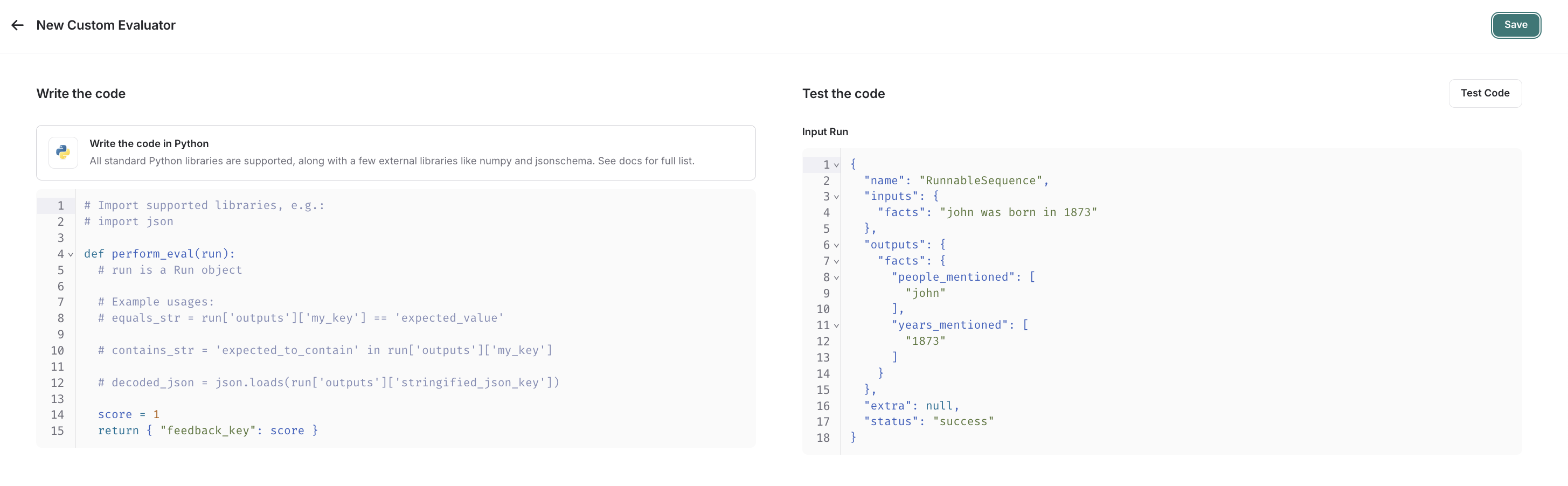 Code evaluators take in one argument:
* A `Run` ([reference](/langsmith/run-data-format)). This represents the sampled run to evaluate.
They return a single value:
* Feedback(s) Dictionary: A dictionary whose keys are the type of feedback you want to return, and values are the score you will give for that feedback key. For example, `{"correctness": 1, "silliness": 0}` would create two types of feedback on the run, one saying it is correct, and the other saying it is not silly.
In the below screenshot, you can see an example of a simple function that validates that each run in the experiment has a known json field:
```python Python theme={"theme":{"light":"catppuccin-latte","dark":"catppuccin-mocha"}}
import json
def perform_eval(run):
output_to_validate = run['outputs']
is_valid_json = 0
# assert you can serialize/deserialize as json
try:
json.loads(json.dumps(output_to_validate))
except Exception as e:
return { "formatted": False }
# assert output facts exist
if "facts" not in output_to_validate:
return { "formatted": False }
# assert required fields exist
if "years_mentioned" not in output_to_validate["facts"]:
return { "formatted": False }
return {"formatted": True}
```
```javascript JavaScript theme={"theme":{"light":"catppuccin-latte","dark":"catppuccin-mocha"}}
function perform_eval(run) {
const outputToValidate = run.outputs;
// Assert you can serialize/deserialize as json
try {
JSON.stringify(outputToValidate);
JSON.parse(JSON.stringify(outputToValidate));
} catch (e) {
return { "formatted": false };
}
// Assert output facts exist
if (!("facts" in outputToValidate)) {
return { "formatted": false };
}
// Assert required fields exist
if (!outputToValidate["facts"].hasOwnProperty("years_mentioned")) {
return { "formatted": false };
}
return { "formatted": true };
}
```
## Test and save your evaluation function
Before saving, you can test your evaluator function on a recent run by clicking **Test Code** to make sure that your code executes properly.
Once you **Save**, your online evaluator will run over newly sampled runs (or backfilled ones too if you chose the backfill option).
If you prefer a video tutorial, check out the [Online Evaluations video](https://academy.langchain.com/pages/intro-to-langsmith-preview) from the Introduction to LangSmith Course.
***
Code evaluators take in one argument:
* A `Run` ([reference](/langsmith/run-data-format)). This represents the sampled run to evaluate.
They return a single value:
* Feedback(s) Dictionary: A dictionary whose keys are the type of feedback you want to return, and values are the score you will give for that feedback key. For example, `{"correctness": 1, "silliness": 0}` would create two types of feedback on the run, one saying it is correct, and the other saying it is not silly.
In the below screenshot, you can see an example of a simple function that validates that each run in the experiment has a known json field:
```python Python theme={"theme":{"light":"catppuccin-latte","dark":"catppuccin-mocha"}}
import json
def perform_eval(run):
output_to_validate = run['outputs']
is_valid_json = 0
# assert you can serialize/deserialize as json
try:
json.loads(json.dumps(output_to_validate))
except Exception as e:
return { "formatted": False }
# assert output facts exist
if "facts" not in output_to_validate:
return { "formatted": False }
# assert required fields exist
if "years_mentioned" not in output_to_validate["facts"]:
return { "formatted": False }
return {"formatted": True}
```
```javascript JavaScript theme={"theme":{"light":"catppuccin-latte","dark":"catppuccin-mocha"}}
function perform_eval(run) {
const outputToValidate = run.outputs;
// Assert you can serialize/deserialize as json
try {
JSON.stringify(outputToValidate);
JSON.parse(JSON.stringify(outputToValidate));
} catch (e) {
return { "formatted": false };
}
// Assert output facts exist
if (!("facts" in outputToValidate)) {
return { "formatted": false };
}
// Assert required fields exist
if (!outputToValidate["facts"].hasOwnProperty("years_mentioned")) {
return { "formatted": false };
}
return { "formatted": true };
}
```
## Test and save your evaluation function
Before saving, you can test your evaluator function on a recent run by clicking **Test Code** to make sure that your code executes properly.
Once you **Save**, your online evaluator will run over newly sampled runs (or backfilled ones too if you chose the backfill option).
If you prefer a video tutorial, check out the [Online Evaluations video](https://academy.langchain.com/pages/intro-to-langsmith-preview) from the Introduction to LangSmith Course.
***
[Connect these docs](/use-these-docs) to Claude, VSCode, and more via MCP for real-time answers.
[Edit this page on GitHub](https://github.com/langchain-ai/docs/edit/main/src/langsmith/online-evaluations-code.mdx) or [file an issue](https://github.com/langchain-ai/docs/issues/new/choose).