> ## Documentation Index
> Fetch the complete documentation index at: https://docs.langchain.com/llms.txt
> Use this file to discover all available pages before exploring further.

# Set up SSO with OAuth2.0 and OIDC

LangSmith Self-Hosted provides SSO via OAuth2.0 and OIDC. This will delegate authentication to your Identity Provider (IdP) to manage access to LangSmith.

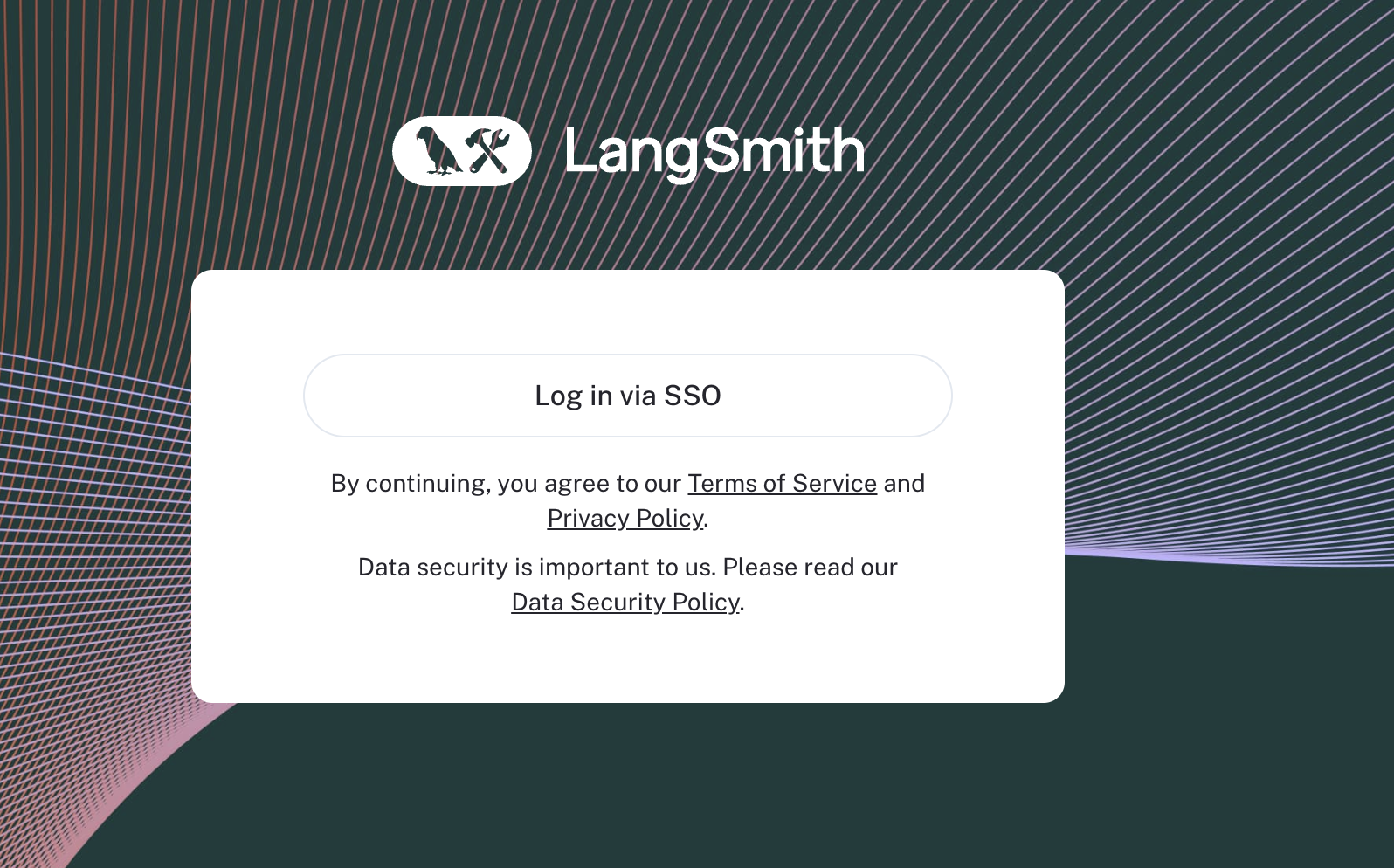
Our implementation supports almost anything that is OIDC compliant, with a few exceptions. Once configured, you will see a login screen like this:

<img src="https://mintcdn.com/langchain-5e9cc07a/4kN8yiLrZX_amfFn/langsmith/images/langsmith-ui-sso.png?fit=max&auto=format&n=4kN8yiLrZX_amfFn&q=85&s=bbe6447424ea3e97a486b67d21cd4f6b" alt="LangSmith UI with OAuth SSO" width="1596" height="994" data-path="langsmith/images/langsmith-ui-sso.png" />

## Overview

<Note>
  You may upgrade a [basic auth](/langsmith/self-host-basic-auth) installation to this mode, but not a [none auth](/langsmith/authentication-methods#none) installation. In order to upgrade, simply remove the basic auth configuration and add the required configuration parameters as shown below. Users may then login via OAuth *only*. **In order to maintain access post-upgrade, you must have access to login via OAuth using an email address that previously logged in via basic auth.**
</Note>

<Warning>
  LangSmith does not support moving from SSO to basic auth mode in self-hosted at the moment. We also do not support moving from OAuth Mode with client secret to OAuth mode without a client secret and vice versa. Finally, we do not support having both basic auth and OAuth at the same time. Ensure you disable the basic auth configuration when enabling OAuth.
</Warning>

## With client secret (Recommended)

By default, LangSmith Self-Hosted supports the `Authorization Code` flow with `Client Secret`. In this version of the flow, your client secret is stored security in LangSmith (not on the frontend) and used for authentication and establishing auth sessions.

### Prerequisites

* You must be self-hosted and on an Enterprise plan.
* Your IdP must support the `Authorization Code` flow with `Client Secret`.
* Your IdP must support using an external discovery/issuer URL. We will use this to fetch the necessary routes and keys for your IdP.
* You must provide the `OIDC`, `email`, and `profile` scopes to LangSmith. We use these to fetch the necessary user information and email for your users.

<Note>
  LangSmith SSO is only supported over `https`.
</Note>

### Configuration

* You will need to set the callback URL in your IdP to `https://<host>/api/v1/oauth/custom-oidc/callback`, where `host` is the domain or IP you have provisioned for your LangSmith instance. This is where your IdP will redirect the user after they have authenticated.
* To terminate the IdP session on logout (so users must re-authenticate), register your LangSmith URL (e.g., `https://<host>`) as a **post-logout redirect URI** (sometimes called "Sign-out redirect URI") in your IdP, then set `OAUTH_IDP_LOGOUT_ENABLED=true` in your environment (via `commonEnv` in Helm or your `.env` file in Docker Compose).
* You will need to provide the `oauthClientId`, `oauthClientSecret`, `hostname`, and `oauthIssuerUrl` in your `values.yaml` file. This is where you will configure your LangSmith instance.
* If you have **not** already configured Oauth with client secret or if you only have personal orgs, you must provide an email address to assign as the initial org admin for the newly provisioned SSO org. If you are upgrading from basic auth, your existing org will be reused instead.

<CodeGroup>
  ```yaml Helm theme={"theme":{"light":"catppuccin-latte","dark":"catppuccin-mocha"}}
  config:
    authType: mixed
    hostname: https://langsmith.example.com
    initialOrgAdminEmail: test@email.com # Set this if required
    oauth:
      enabled: true
      oauthClientId: <YOUR CLIENT ID>
      oauthClientSecret: <YOUR CLIENT SECRET>
      oauthIssuerUrl: <YOUR DISCOVERY URL>
      oauthScopes: "email,profile,openid"
  ```

  ```bash Docker theme={"theme":{"light":"catppuccin-latte","dark":"catppuccin-mocha"}}
  # In your .env file
  AUTH_TYPE=mixed
  INITIAL_ORG_ADMIN_EMAIL=test@email.com
  LANGSMITH_URL=https://langsmith.example.com
  OAUTH_CLIENT_ID=your-client-id
  OAUTH_CLIENT_SECRET=your-client-secret
  OAUTH_ISSUER_URL=https://your-issuer-url
  OAUTH_SCOPES=email,profile,openid
  ```
</CodeGroup>

### Session length controls

<Note>
  All of the environment variables in this section are for the `platform-backend` service and can be added using `platformBackend.deployment.extraEnv` in Helm.
</Note>

* By default, session length is controlled by the expiration of the identity token returned by the identity provider
* Most setups should use refresh tokens to enable session length extension beyond the identity token expiration up to `OAUTH_SESSION_MAX_SEC`, which may require including the `offline_access` scope by adding to `oauthScopes` (Helm) or `OAUTH_SCOPES` (Docker)
* `OAUTH_SESSION_MAX_SEC` (default 1 day) can be overridden to a maximum of one week (`604800`)
* For identity provider setups that don't support refresh tokens, setting `OAUTH_OVERRIDE_TOKEN_EXPIRY="true"` will take `OAUTH_SESSION_MAX_SEC` as the session length, ignoring the identity token expiration

### Override sub claim

In some scenarios, it may be necessary to override which claim is used as the `sub` claim from your identity provider.
For example, in SCIM, the resolved `sub` claim and SCIM `externalId` must match in order for login to succeed.
If there are restrictions on the source attribute of the `sub` claim and/or the SCIM `externalId`, set the `ISSUER_SUB_CLAIM_OVERRIDES` environment variable to select which OIDC JWT claim is used as the `sub`.

If an issuer URL **starts with** one of the URLs in this configuration, the `sub` claim is taken from the field name specified.
For example, with the following configuration, a token with the issuer `https://idp.yourdomain.com/application/uuid` would use the `customClaim` value as the `sub`:

```
ISSUER_SUB_CLAIM_OVERRIDES='{"https://idp.yourdomain.com": "customClaim"}'
```

If unset, the default value for this configuration uses the `oid` claim when Azure Entra ID is used as the identity provider:

```
ISSUER_SUB_CLAIM_OVERRIDES='{"https://login.microsoftonline.com/": "oid", "https://sts.windows.net/": "oid", "https://login.microsoftonline.us/": "oid", "https://login.partner.microsoftonline.cn/": "oid"}'
```

### SSO Groups Sync

<Note>
  SSO Groups Sync on self-hosted requires LangSmith chart version **0.15.0-rc.3** (application version **0.15.2rc1**) or later.
</Note>

[SSO Groups Sync](/langsmith/user-management#sso-groups-sync-alternative) lets LangSmith assign org and workspace roles from a group membership claim on the OIDC token, as a simpler alternative to [SCIM](/langsmith/user-management#set-up-scim-for-your-organization). On self-hosted, you must configure the IdP to include groups in the OIDC ID token before LangSmith can read them.

**IdP-side configuration (varies by provider):**

1. Configure your IdP application to emit a group membership claim in the OIDC ID token. The source attribute and the resulting claim name vary by IdP. Common examples include `groups`, `roles`, or a custom claim name. LangSmith does not dictate the source attribute.
2. Depending on your IdP, you may need to add an additional scope (commonly `groups`) to `oauthScopes` to receive the claim. Check your IdP's documentation for the required scope and any additional configuration needed to include group memberships in the token.
3. Group names must follow the [SCIM naming convention](/langsmith/user-management#group-naming-convention) (e.g., `LS:Organization Admin`, `LS:Organization User:prod:Editor`). The separator is shared with SCIM via [`scim_group_name_separator`](/langsmith/user-management#configure-custom-separator).

**Helm configuration:**

If your IdP requires an additional OIDC scope to include groups in the token (commonly `groups`), add it to `oauthScopes`:

<CodeGroup>
  ```yaml Helm theme={"theme":{"light":"catppuccin-latte","dark":"catppuccin-mocha"}}
  config:
    authType: mixed
    hostname: https://langsmith.example.com
    oauth:
      enabled: true
      oauthClientId: <YOUR CLIENT ID>
      oauthClientSecret: <YOUR CLIENT SECRET>
      oauthIssuerUrl: <YOUR DISCOVERY URL>
      oauthScopes: "email,profile,openid,groups"
  ```

  ```bash Docker theme={"theme":{"light":"catppuccin-latte","dark":"catppuccin-mocha"}}
  # In your .env file
  AUTH_TYPE=mixed
  LANGSMITH_URL=https://langsmith.example.com
  OAUTH_CLIENT_ID=your-client-id
  OAUTH_CLIENT_SECRET=your-client-secret
  OAUTH_ISSUER_URL=https://your-issuer-url
  OAUTH_SCOPES=email,profile,openid,groups
  ```
</CodeGroup>

The exact scope name (`groups`, `roles`, etc.) depends on your IdP. Check your IdP's OIDC documentation.

**LangSmith-side configuration:**

Per-provider SSO Groups Sync settings are stored on the SSO provider record and toggled via the [LangSmith UI](https://smith.langchain.com?utm_source=docs\&utm_medium=cta\&utm_campaign=langsmith-signup\&utm_content=langsmith-self-host-sso) or [API](/langsmith/reference) (not via Helm values). Once your IdP emits the groups claim, configure SSO Groups Sync from the UI in **Settings** → **Members and roles** → **SSO Configuration** → **SSO Groups Sync**. Or, via the API as described in the [main SSO Groups Sync documentation](/langsmith/user-management#sso-groups-sync-alternative). The claim name configured in the **Groups claim field** must match the claim emitted by your IdP.

### Google workspace IdP setup

You can use Google Workspace as a single sign-on (SSO) provider using [OAuth2.0 and OIDC](https://developers.google.com/identity/openid-connect/openid-connect) without PKCE.

<Note>
  You must have administrator-level access to your organization's Google Cloud Platform (GCP) account to create a new project, or permissions to create and configure OAuth 2.0 credentials for an existing project. We recommend that you create a new project for managing access, since each GCP project has a single OAuth consent screen.
</Note>

1. Create a new GCP project, see the Google documentation topic [creating and managing projects](https://cloud.google.com/resource-manager/docs/creating-managing-projects)

2. After you have created the project, open the [Credentials](https://console.developers.google.com/apis/credentials) page in the Google API Console (making sure the project in the top left corner is correct)

3. Create new credentials: `Create Credentials → OAuth client ID`

4. Choose `Web application` as the `Application type` and enter a name for the application e.g. `LangSmith`

5. In `Authorized Javascript origins` put the domain of your LangSmith instance e.g. `https://langsmith.yourdomain.com`

6. In `Authorized redirect URIs` put the domain of your LangSmith instance followed by `/api/v1/oauth/custom-oidc/callback` e.g. `https://langsmith.yourdomain.com/api/v1/oauth/custom-oidc/callback`

7. Click `Create`, then download the JSON or copy and save the `Client ID` (ends with `.apps.googleusercontent.com`) and `Client secret` somewhere secure. **You will be able to access these later if needed**.

8. Select `OAuth consent screen` from the navigation menu on the left

   1. Choose the Application type as `Internal`. **If you select `Public`, anyone with a Google account can sign in.**
   2. Enter a descriptive `Application name`. This name is shown to users on the consent screen when they sign in. For example, use `LangSmith` or `<organization_name> SSO for LangSmith`.
   3. Verify that the Scopes for Google APIs only lists email, profile, and openid scopes. Only these scopes are required for single sign-on. If you grant additional scopes it increases the risk of exposing sensitive data.

9. (Optional) control who within your organization has access to LangSmith: [https://admin.google.com/ac/owl/list?tab=configuredApps](https://admin.google.com/ac/owl/list?tab=configuredApps). See [Google's documentation](https://support.google.com/a/answer/7281227?hl=en\&fl=1\&sjid=9554153972856467090-NA) for additional details.

10. Configure LangSmith to use this OAuth application. For examples, here are the `config`values that would be used for Kubernetes configuration:

    1. `oauthClientId`: `Client ID` (ends with `.apps.googleusercontent.com`)
    2. `oauthClientSecret`: `Client secret`
    3. `hostname`: the domain of your LangSmith instance e.g. `https://langsmith.yourdomain.com` (no trailing slash)
    4. `oauthIssuerUrl`: `https://accounts.google.com`
    5. `oauth.enabled`: `true`
    6. `authType`: `mixed`

### Okta IdP setup

#### Supported features

* IdP-initiated SSO
* SP-initiated SSO
* Just-In-Time provisioning (see [Manage user access in SSO organizations](/langsmith/jit-invite-sso))

#### Configuration steps

For additional information, see Okta's [documentation](https://help.okta.com/en-us/content/topics/apps/apps_app_integration_wizard_oidc.htm).
If you have any questions or issues, please contact support via [support.langchain.com](https://support.langchain.com).

<div id="via-okta-integration-network">
  <b>Via Okta Integration Network (recommended)</b>
</div>

<Info>For details on SCIM setup, refer to [Set up SCIM for your organization](/langsmith/user-management#set-up-scim-for-your-organization).</Info>

<Note>
  This method of configuration is required in order to use SCIM with Okta.
</Note>

1. Sign in to [Okta](https://login.okta.com/).
2. In the upper-right corner, select Admin. The button is not visible from the Admin area.
3. Select `Browse App Integration Catalog`.
4. Find and select the LangSmith application.
5. On the application overview page, select Add Integration.
6. Fill in `ApiUrlBase`:
   * Your LangSmith API URL **without the protocol** (`https://`) formatted as `<langsmith_domain>/api/v1`, e.g., `langsmith.yourdomain.com/api/v1`.
   * If your installation is configured with a subdomain / path prefix, include that in the URL, e.g., `langsmith.yourdomain.com/prefix/api/v1`.
7. Leave `AuthHost` empty.
8. (Optional, if planning to use [SCIM](/langsmith/user-management#set-up-scim-for-your-organization) as well) Fill in `LangSmithUrl`: The `<langsmith_url>` portion from above, e.g., `langsmith.yourdomain.com`.
9. Under Application Visibility, keep the box unchecked.
10. Select Next.
11. Select `OpenID Connect`.
12. Fill in `Sign-On Options`:
    * `Application username format`: `Email`.
    * `Update application username on`: `Create and update`.
    * `Allow users to securely see their password`: leave **unchecked**.
13. Click **Save**.
14. Configure LangSmith to use this OAuth application (see [general configuration section](#configuration) for details about `initialOrgAdminEmail`):

<CodeGroup>
  ```yaml Helm theme={"theme":{"light":"catppuccin-latte","dark":"catppuccin-mocha"}}
  config:
    authType: mixed
    hostname: https://langsmith.example.com # the domain of your instance (note no trailing slash)
    initialOrgAdminEmail: test@email.com # Set this if required
    oauth:
      enabled: true
      oauthClientId: "Client ID" # (starts with `0o`)
      oauthClientSecret: "Client secret"
      oauthIssuerUrl: "https://company-7422949.okta.com" # the URL of your Okta instance
      oauthScopes: "email,profile,openid"
  ```

  ```bash Docker theme={"theme":{"light":"catppuccin-latte","dark":"catppuccin-mocha"}}
  # In your .env file
  AUTH_TYPE=mixed
  INITIAL_ORG_ADMIN_EMAIL=test@email.com # Set this if required
  LANGSMITH_URL=https://langsmith.example.com # the domain of your instance (note no trailing slash)
  OAUTH_CLIENT_ID="Client ID" # (starts with `0o`)
  OAUTH_CLIENT_SECRET="Client secret"
  OAUTH_ISSUER_URL="https://company-7422949.okta.com" # the URL of your Okta instance
  OAUTH_SCOPES=email,profile,openid
  ```
</CodeGroup>

<Info>For details on SCIM setup, refer to [Set up SCIM for your organization](/langsmith/user-management#set-up-scim-for-your-organization).</Info>

<div id="via-okta-custom-app-integration">
  <b>Via Custom App Integration</b>
</div>

<Warning>
  SCIM is not compatible with this method of configuration. Refer to [**Via Okta Integration Network**](#via-okta-integration-network).
</Warning>

1. Log in to Okta as an administrator, and go to the **Okta Admin console**.
2. Under **Applications** > **Applications** click **Create App Integration**.
3. Select **OIDC - OpenID Connect** as the Sign-in method and **Web Application** as the Application type, then click **Next**.
4. Enter an `App integration name` (e.g., `LangSmith`).
5. Recommended: Check **Core grants > Refresh Token** (see [session length controls](#session-length-controls)).
6. In **Sign-in redirect URIs** put the domain of your LangSmith instance followed by `/api/v1/oauth/custom-oidc/callback`, e.g., `https://langsmith.yourdomain.com/api/v1/oauth/custom-oidc/callback`. If your installation is configured with a subdomain / path prefix, include that in the URL, e.g., `https://langsmith.yourdomain.com/prefix/api/v1/oauth/custom-oidc/callback`.
7. Under **Sign-out redirect URIs**, set the value to your LangSmith URL, e.g., `https://langsmith.yourdomain.com`. This ensures the IdP session is terminated when users log out of LangSmith.
8. Under **Trusted Origins > Base URIs** add your langsmith URL with the protocol, e.g., `https://langsmith.yourdomain.com`.
9. Select your desired option under **Assignments > Controlled access**:
   * Allow everyone in your organization to access.
   * Limit access to selected groups.
   * Skip group assignment for now.
10. Click **Save**.
11. Under **Sign On > OpenID Connect ID Token** set **Issuer** to **Okta URL**.
12. (Optional) Under **General > Login** set **Login initiated by** to `Either Okta or App` to enable IdP-initiated login.
13. (Recommended) Under **General > Login > Email verification experience** fill in the **Callback URI** with the LangSmith URL, e.g., `https://langsmith.yourdomain.com`.
14. Configure LangSmith to use this OAuth application (see [general configuration section](#configuration) for details about `initialOrgAdminEmail`):

<CodeGroup>
  ```yaml Helm theme={"theme":{"light":"catppuccin-latte","dark":"catppuccin-mocha"}}
  config:
    authType: mixed
    hostname: https://langsmith.example.com # the domain of your instance (note no trailing slash)
    initialOrgAdminEmail: test@email.com # Set this if required
    oauth:
      enabled: true
      oauthClientId: "Client ID" # (starts with `0o`)
      oauthClientSecret: "Client secret"
      oauthIssuerUrl: "https://company-7422949.okta.com" # the URL of your Okta instance
      oauthScopes: "email,profile,openid"
  ```

  ```bash Docker theme={"theme":{"light":"catppuccin-latte","dark":"catppuccin-mocha"}}
  # In your .env file
  AUTH_TYPE=mixed
  INITIAL_ORG_ADMIN_EMAIL=test@email.com # Set this if required
  LANGSMITH_URL=https://langsmith.example.com # the domain of your instance (note no trailing slash)
  OAUTH_CLIENT_ID="Client ID" # (starts with `0o`)
  OAUTH_CLIENT_SECRET="Client secret"
  OAUTH_ISSUER_URL="https://company-7422949.okta.com" # the URL of your Okta instance
  OAUTH_SCOPES=email,profile,openid
  ```
</CodeGroup>

#### SP-initiated SSO

Users can sign in using the **Login via SSO** button on the LangSmith homepage.

## Without client secret (PKCE) (Deprecated)

We recommend running with a `Client Secret` if possible (previously we didn't support this). However, if your IdP does not support this, you can use the `Authorization Code with PKCE` flow.

This flow does *not* require a `Client Secret`. For the alternative workflow, refer to [With client secret](#with-client-secret-recommended).

### Requirements

There are a couple of requirements for using OAuth SSO with LangSmith:

* Your IdP must support the `Authorization Code with PKCE` [flow](https://www.oauth.com/oauth2-servers/pkce) (Google does not support this flow for example, but see [above](#with-client-secret-recommended) for an alternative configuration that Google supports). This is often displayed in your OAuth Provider as configuring a "Single Page Application (SPA)"
* Your IdP must support using an external discovery/issuer URL. We will use this to fetch the necessary routes and keys for your IdP.
* You must provide the `OIDC`, `email`, and `profile` scopes to LangSmith. We use these to fetch the necessary user information and email for your users.
* You will need to set the callback URL in your IdP to `http://<host>/oauth-callback`, where host is the domain or IP you have provisioned for your LangSmith instance. This is where your IdP will redirect the user after they have authenticated.
* You will need to provide the `oauthClientId` and `oauthIssuerUrl` in your `values.yaml` file. This is where you will configure your LangSmith instance.

<CodeGroup>
  ```yaml Helm theme={"theme":{"light":"catppuccin-latte","dark":"catppuccin-mocha"}}
  config:
    oauth:
      enabled: true
      oauthClientId: <YOUR CLIENT ID>
      oauthIssuerUrl: <YOUR DISCOVERY URL>
  ```

  ```bash Docker theme={"theme":{"light":"catppuccin-latte","dark":"catppuccin-mocha"}}
  # In your .env file
  AUTH_TYPE=oauth
  OAUTH_CLIENT_ID=your-client-id
  OAUTH_ISSUER_URL=https://your-issuer-url
  ```
</CodeGroup>

***

<div className="source-links">
  <Callout icon="terminal-2">
    [Connect these docs](/use-these-docs) to Claude, VSCode, and more via MCP for real-time answers.
  </Callout>

  <Callout icon="edit">
    [Edit this page on GitHub](https://github.com/langchain-ai/docs/edit/main/src/langsmith/self-host-sso.mdx) or [file an issue](https://github.com/langchain-ai/docs/issues/new/choose).
  </Callout>
</div>
