> ## Documentation Index
> Fetch the complete documentation index at: https://docs.langchain.com/llms.txt
> Use this file to discover all available pages before exploring further.
# Use docs programmatically
> Connect LangChain documentation to your AI tools and workflows
We want to make our documentation as accessible as possible. We've included several ways for you to use these docs programmatically through AI assistants, code editors, and direct integrations, such as Model Context Protocol (MCP).
## Quick access options
On any page in our documentation, you'll find a contextual menu dropdown in the top right corner:
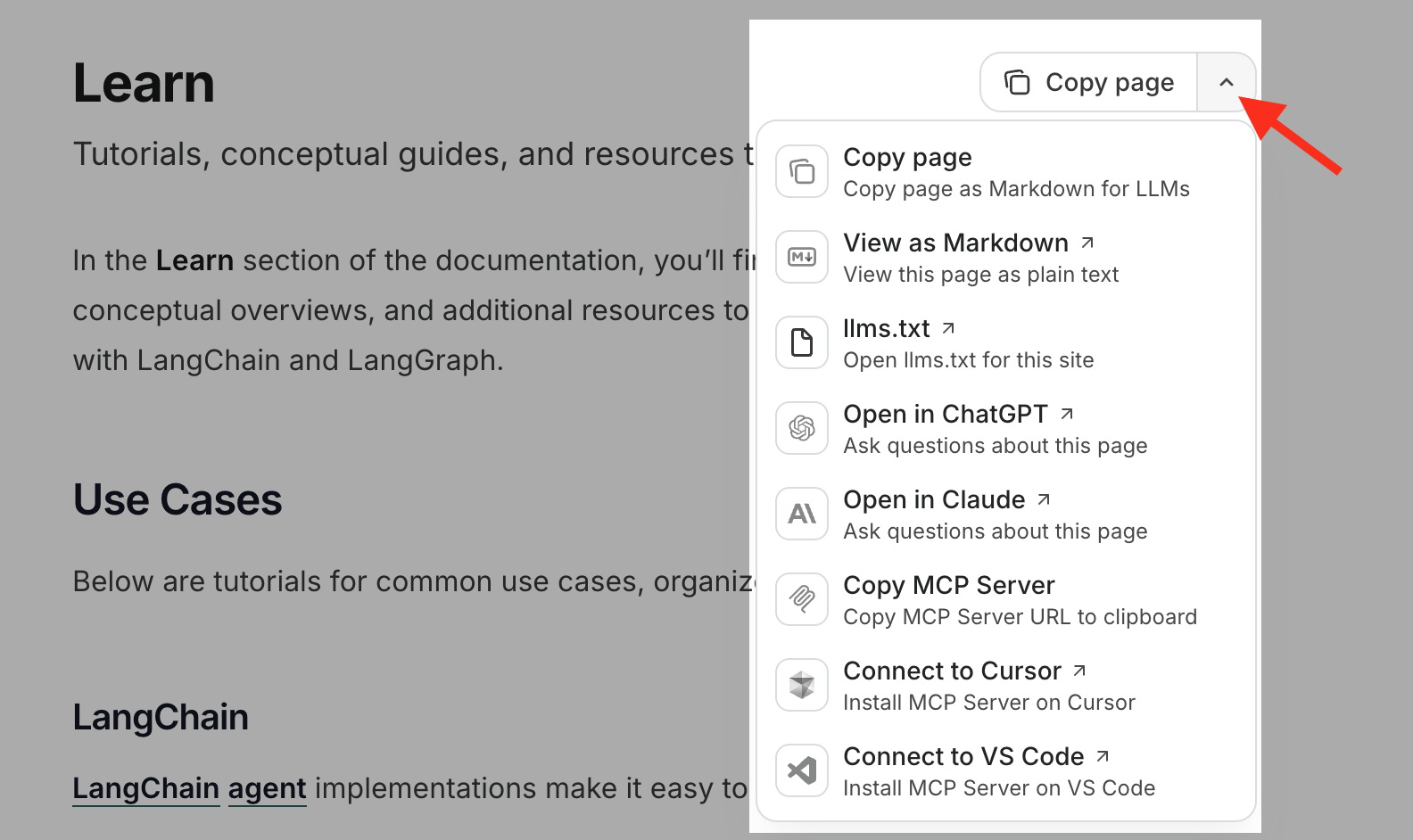
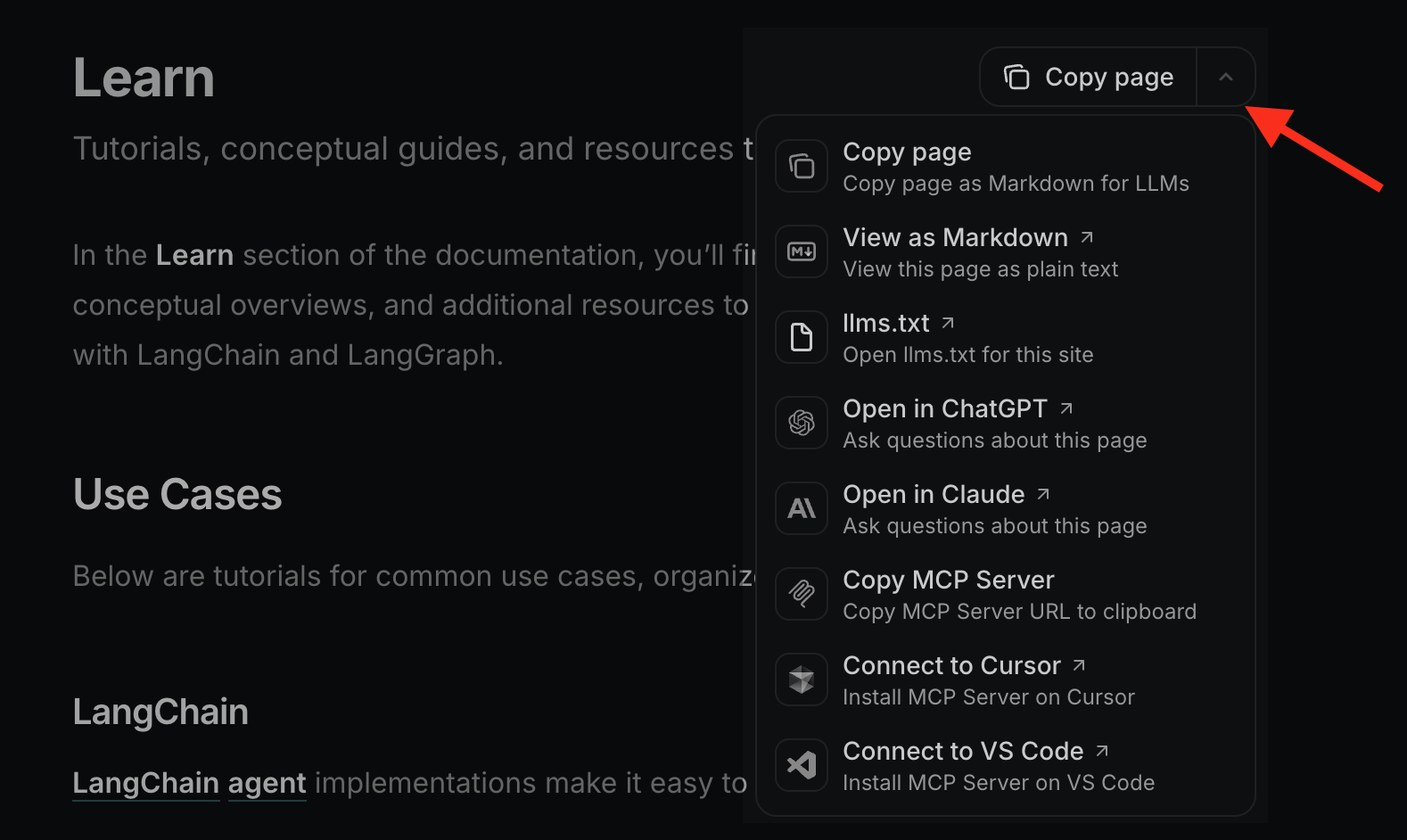 This includes our `llms.txt`, MCP server connection, and other quick access options such as ChatGPT and Claude.
## Use our MCP server
Our documentation includes a built-in **Model Context Protocol (MCP) server** that lets AI applications query the latest docs in real-time.
The LangChain docs MCP server is available at:
```txt theme={"theme":{"light":"catppuccin-latte","dark":"catppuccin-mocha"}}
https://docs.langchain.com/mcp
```
Once connected, you can ask your AI assistant questions about LangChain, LangGraph, and LangSmith, and it will search our documentation to provide accurate, current answers.
### Connect with Claude Code
If you're using Claude Code, run this command in your terminal to add the server to your current project:
```bash theme={"theme":{"light":"catppuccin-latte","dark":"catppuccin-mocha"}}
claude mcp add --transport http docs-langchain https://docs.langchain.com/mcp
```
**Project (local) scoped**
The command above adds the MCP server only to your current project/working directory. To add the MCP server globally and access it in all projects, add the user scope by adding `--scope user` to the command:
```bash theme={"theme":{"light":"catppuccin-latte","dark":"catppuccin-mocha"}}
claude mcp add --transport http docs-langchain --scope user https://docs.langchain.com/mcp
```
### Connect with Claude Desktop
1. Open Claude Desktop
2. Go to Settings > Connectors
3. Add our MCP server URL: `https://docs.langchain.com/mcp`
### Connect with Codex CLI
If you're using OpenAI Codex CLI, run this command in your terminal to add the server globally:
```sh theme={"theme":{"light":"catppuccin-latte","dark":"catppuccin-mocha"}}
codex mcp add langchain-docs --url https://docs.langchain.com/mcp
```
### Connect with Cursor
Add the following to your MCP settings configuration file:
```json theme={"theme":{"light":"catppuccin-latte","dark":"catppuccin-mocha"}}
{
"mcpServers": {
"docs-langchain": {
"url": "https://docs.langchain.com/mcp"
}
}
}
```
### Connect with VS Code
Add the following to your MCP settings configuration file:
```json theme={"theme":{"light":"catppuccin-latte","dark":"catppuccin-mocha"}}
{
"servers": {
"docs-langchain": {
"url": "https://docs.langchain.com/mcp"
}
}
}
```
### Connect with Antigravity
Add the following to your MCP settings configuration file:
```json theme={"theme":{"light":"catppuccin-latte","dark":"catppuccin-mocha"}}
{
"mcpServers": {
"docs-langchain": {
"serverUrl": "https://docs.langchain.com/mcp"
}
}
}
```
## Learn more
For more information about using Mintlify's MCP servers, see the [official Mintlify documentation](https://www.mintlify.com/docs/ai/model-context-protocol).
Have questions or feedback? Let us know in our [community forum](https://forum.langchain.com/).
***
This includes our `llms.txt`, MCP server connection, and other quick access options such as ChatGPT and Claude.
## Use our MCP server
Our documentation includes a built-in **Model Context Protocol (MCP) server** that lets AI applications query the latest docs in real-time.
The LangChain docs MCP server is available at:
```txt theme={"theme":{"light":"catppuccin-latte","dark":"catppuccin-mocha"}}
https://docs.langchain.com/mcp
```
Once connected, you can ask your AI assistant questions about LangChain, LangGraph, and LangSmith, and it will search our documentation to provide accurate, current answers.
### Connect with Claude Code
If you're using Claude Code, run this command in your terminal to add the server to your current project:
```bash theme={"theme":{"light":"catppuccin-latte","dark":"catppuccin-mocha"}}
claude mcp add --transport http docs-langchain https://docs.langchain.com/mcp
```
**Project (local) scoped**
The command above adds the MCP server only to your current project/working directory. To add the MCP server globally and access it in all projects, add the user scope by adding `--scope user` to the command:
```bash theme={"theme":{"light":"catppuccin-latte","dark":"catppuccin-mocha"}}
claude mcp add --transport http docs-langchain --scope user https://docs.langchain.com/mcp
```
### Connect with Claude Desktop
1. Open Claude Desktop
2. Go to Settings > Connectors
3. Add our MCP server URL: `https://docs.langchain.com/mcp`
### Connect with Codex CLI
If you're using OpenAI Codex CLI, run this command in your terminal to add the server globally:
```sh theme={"theme":{"light":"catppuccin-latte","dark":"catppuccin-mocha"}}
codex mcp add langchain-docs --url https://docs.langchain.com/mcp
```
### Connect with Cursor
Add the following to your MCP settings configuration file:
```json theme={"theme":{"light":"catppuccin-latte","dark":"catppuccin-mocha"}}
{
"mcpServers": {
"docs-langchain": {
"url": "https://docs.langchain.com/mcp"
}
}
}
```
### Connect with VS Code
Add the following to your MCP settings configuration file:
```json theme={"theme":{"light":"catppuccin-latte","dark":"catppuccin-mocha"}}
{
"servers": {
"docs-langchain": {
"url": "https://docs.langchain.com/mcp"
}
}
}
```
### Connect with Antigravity
Add the following to your MCP settings configuration file:
```json theme={"theme":{"light":"catppuccin-latte","dark":"catppuccin-mocha"}}
{
"mcpServers": {
"docs-langchain": {
"serverUrl": "https://docs.langchain.com/mcp"
}
}
}
```
## Learn more
For more information about using Mintlify's MCP servers, see the [official Mintlify documentation](https://www.mintlify.com/docs/ai/model-context-protocol).
Have questions or feedback? Let us know in our [community forum](https://forum.langchain.com/).
***
[Edit this page on GitHub](https://github.com/langchain-ai/docs/edit/main/src/use-these-docs.mdx) or [file an issue](https://github.com/langchain-ai/docs/issues/new/choose).
[Connect these docs](/use-these-docs) to Claude, VSCode, and more via MCP for real-time answers.