

Types of context
Input context
Input context is information provided to your deep agent at startup that becomes part of its system prompt. The final prompt consists of several sources:System prompt
Custom instructions you provide plus built-in agent guidance.
Memory
Persistent
AGENTS.md files always loaded when configured.Skills
On-demand capabilities loaded when relevant (progressive disclosure).
Tool prompts
Instructions for using built-in tools or custom tools.
System prompt
Your custom system prompt is prepended to the built-in system prompt, which includes guidance for filesystem tools and subagents. Use it to define the agent’s role, behavior, and knowledge:systemPrompt parameter is static which means it does not change per invocation.
For some use cases you may want a dynamic prompt: for example, to tell the model “You have admin access” vs “You have read-only access,” or to inject user preferences like “User prefers concise responses” from long-term memory.
If your prompt depends on context or runtime.store, use dynamicSystemPromptMiddleware to build context-aware instructions.
Your middleware can read request.runtime.context and request.runtime.store.
See Customization for the Deep Agents stack and for adding custom middleware. See the LangChain context engineering guide for examples.
You do not need middleware when tools alone use context or runtime.store; tools receive the runtime object (including runtime.context and runtime.store) directly. Add middleware only when the system prompt itself must vary per request.
Memory
Memory files (AGENTS.md) provide persistent context that is always loaded into the system prompt. Use memory for project conventions, user preferences, and critical guidelines that should apply to every conversation:
AGENTS.md, see OpenWiki.
Skills
Skills provide on-demand capabilities. The agent reads frontmatter from eachSKILL.md at startup, then loads full skill content only when it determines the skill is relevant. This reduces token usage while still providing specialized workflows:
Tool prompts
Tool prompts are instructions that shape how the model uses tools. All tools expose metadata the model sees in its prompt—typically a schema and a description. Tools you pass via thetools parameter surface that tool metadata (schema and descriptions) to the model. A deep agent’s built-in tools are packaged in the Deep Agents stack and typically also update the system prompt with more guidance for those tools.
Built-in tools: Middleware that adds harness capabilities (filesystem, subagents, and optional planning) automatically appends tool-specific instructions to the system prompt, creating tool prompts that explain how to use those tools effectively. See Customization for the full list:
-
Filesystem prompt: Documentation for
ls,read_file,write_file,edit_file,glob,grep(andexecutewhen using a sandbox backend) -
Subagent prompt: Guidance for delegating work with the
tasktool -
Human-in-the-loop prompt: Usage for pausing at specified tool calls (when
interrupt_onis set) - Local context prompt: Current directory and project info (Deep Agents Code only)
tools parameter get their descriptions (from the tool schema) sent to the model. You can also add custom middleware that adds tools and appends its own system prompt instructions.
For tools you provide, make sure to provide a clear name, description, and argument descriptions. These guide the model’s reasoning about when and how to use the tool. Include when to use the tool in the description and describe what each argument does.
Complete system prompt
The deep agent’s system message—the assembled system prompt the model receives at the start of a run—consists of the following parts:- Custom
system_prompt(if provided) - Base agent prompt
- Memory prompt:
AGENTS.md+ memory usage guidelines (only whenmemoryprovided) - Skills prompt: Skills locations + list of skills with frontmatter information + usage (only when skills provided)
- Virtual filesystem prompt (filesystem + execute tool docs if applicable)
- Subagent prompt: Task tool usage
- User-provided middleware prompts (if custom middleware is provided)
- Human-in-the-loop prompt (when
interrupt_onis set)
Runtime context
Runtime context is per-run configuration you pass when you invoke the agent. It is not automatically included in the model prompt; the model only sees it if a tool, middleware, or other logic reads it and adds it to messages or the system prompt. Use runtime context for user metadata (IDs, preferences, roles), API keys, database connections, feature flags, or other values your tools and harness need. Define the shape of that data withcontextSchema, typically a Zod object schema (for example z.object({ ... })). Pass runtime values in the context field of the options object you pass to invoke / ainvoke. See Runtime and LangGraph runtime context for full detail.
Inside tools, read runtime.context from the ToolRuntime instance supplied as the tool handler’s runtime argument:
Context compression
Everycreate_deep_agent call includes built-in context compression. You do not need to add middleware for offloading or summarization to work.
Long-running tasks produce large tool outputs and long conversation history.
Context compression reduces the size of information in an agent’s working memory while preserving details relevant to the task.
The following techniques are the built-in mechanisms to ensure the context passed to LLMs stays within its context window limit:
Offloading
Large tool inputs and results are stored in the filesystem and replaced with references.
Summarization
Old messages are compressed into an LLM-generated summary when limits are approached.
excluded_tools). See Tool prompts.
Offloading
Deep Agents use the built-in filesystem tools to automatically offload content and to search and retrieve that offloaded content as needed. Content offloading happens when tool call inputs or results exceed a token threshold (default 20,000):-
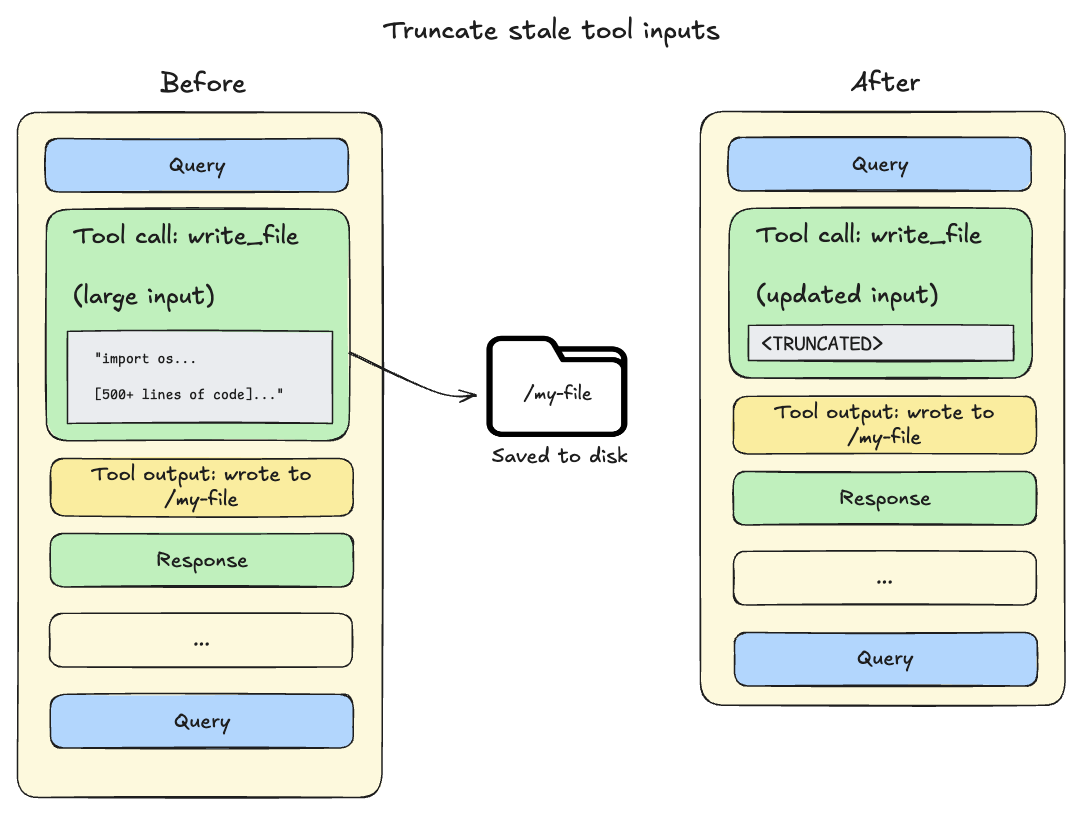
Tool call inputs exceed 20,000 tokens: File write and edit operations leave behind tool calls containing the complete file content in the agent’s conversation history.
Since this content is already persisted to the filesystem, it’s often redundant.
As the session context crosses 85% of the model’s available window, deep agents truncate older tool calls, replacing them with a pointer to the file on disk and reducing the size of the active context.
-
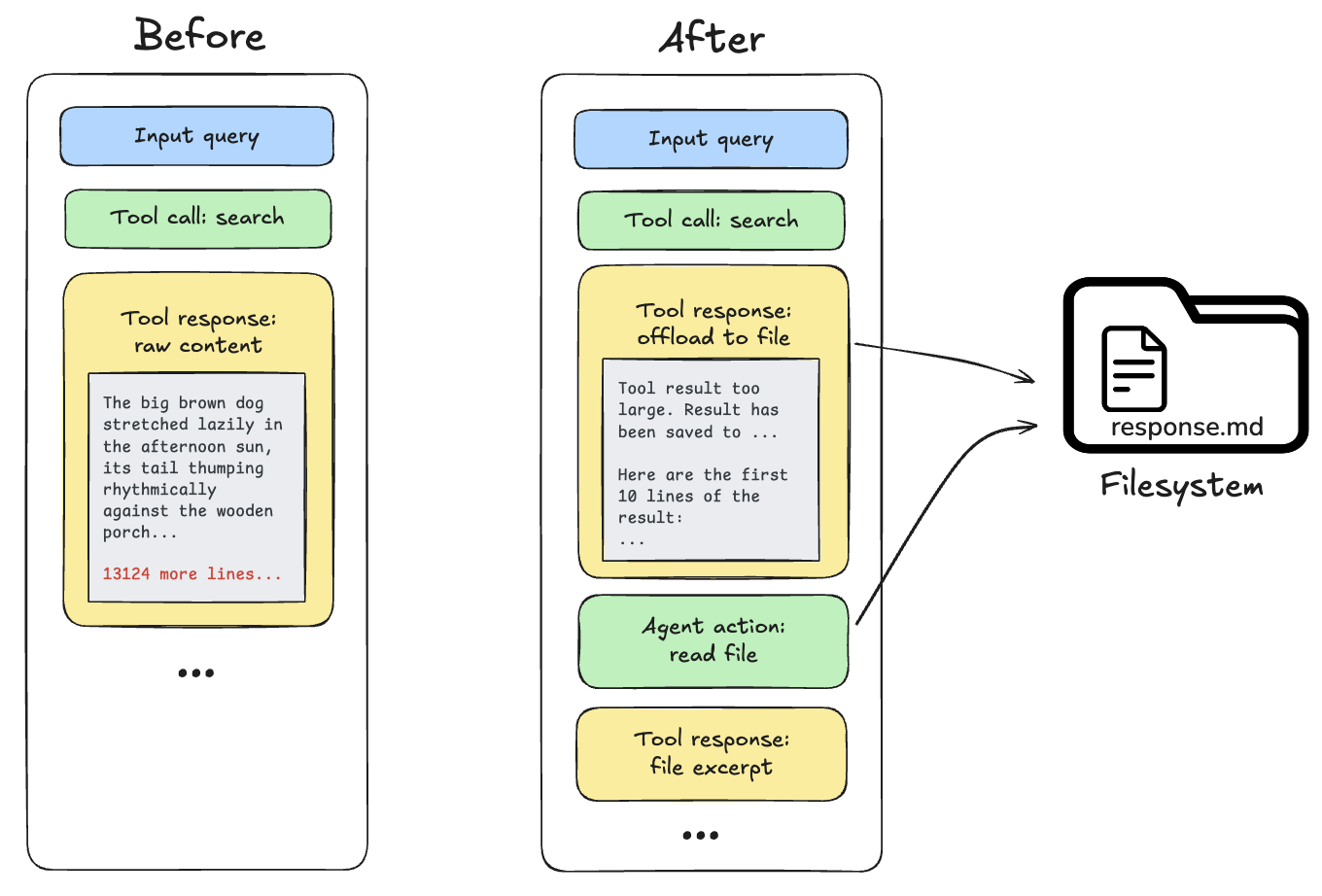
Tool call results exceed 20,000 tokens: When this occurs, the deep agent offloads the response to the configured backend and substitutes it with a file path reference and a preview of the first 10 lines. Agents can then re-read or search the content as needed.
Built-in context compression does not resize images, lower image resolution, or generate visual embeddings. For multimodal inputs, tool outputs, and how compression interacts with media, see Multimodal.
Summarization
The current summarization behavior (in-model summarization via
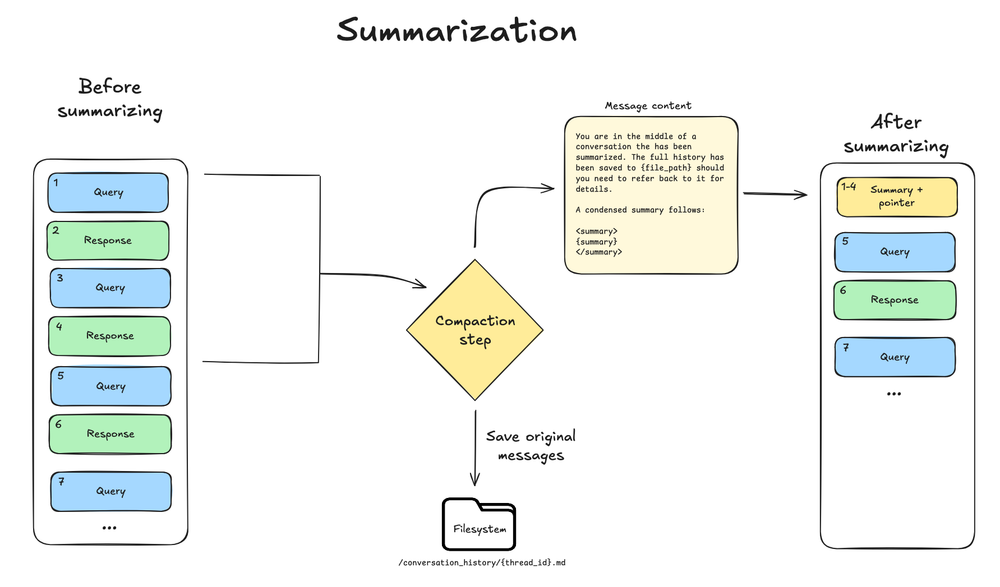
wrapModelCall, accurate token counting, and automatic ContextOverflowError fallback) requires deepagents>=1.6.0.create_deep_agent call includes SummarizationMiddleware in the bare stack. When the context size crosses the model’s context window limit (for example 85% of max_input_tokens), and there is no more context eligible for offloading, the deep agent summarizes the message history automatically.
This process has two components:
- In-context summary: An LLM generates a structured summary of the conversation including session intent, artifacts created, and next steps—which replaces the full conversation history in the agent’s working memory.
- Filesystem preservation: A text rendering of the original conversation messages is written to the filesystem as a canonical record.
- Triggers at 85% of the model’s
max_input_tokensfrom its model profile - Keeps 10% of tokens as recent context
- Falls back to 170,000-token trigger / 6 messages kept if model profile is unavailable
- If any model call raises a standard ContextOverflowError, the deep agent immediately falls back to summarization and retry with summary + recent preserved messages
- Older messages are summarized by the model
Context isolation with subagents
Subagents solve the context bloat problem. When the main agent uses tools with large outputs (web search, file reads, database queries), the context window fills quickly. Subagents isolate this work—the main agent receives only the final result, not the dozens of tool calls that produced it. You can also configure each subagent separately from the main agent (for example, model, tools, system prompt, and skills). How it works:- Main agent has a
tasktool to delegate work - Subagent runs with its own fresh context
- Subagent executes autonomously until completion
- Subagent returns a single final report to the main agent
- Main agent’s context stays clean
- Delegate complex tasks: Use subagents for multi-step work that would clutter the main agent’s context.
-
Keep subagent responses concise: Instruct subagents to return summaries, not raw data:
View example trace
Open a public LangSmith run for this example. - Use the filesystem for large data: Subagents can write results to files; the main agent reads what it needs.
Long-term memory
When using the default filesystem, your deep agent stores its working memory files in agent state, which only persists within a single thread. Long-term memory enables your deep agent to persist information across different threads and conversations. Deep agents can use long-term memory for storing user preferences, accumulated knowledge, research progress, or any information that should persist beyond a single session. To use long-term memory, you must use aCompositeBackend that routes specific paths (typically /memories/) to a LangGraph Store, which provides durable cross-thread persistence.
The CompositeBackend is a hybrid storage system where some files persist indefinitely while others remain scoped to a single thread.
View example trace
Open a public LangSmith run for this example.
/memories/ with files.
You provide the backend config, store, and system prompt instructions that tell the agent what to save and where.
For example, you may prompt the agent to store preferences in /memories/preferences.txt.
The path starts empty and the agent creates files on demand using its filesystem tools (write_file, edit_file) when users share information worth remembering.
To pre-seed memories, use the Store API when deploying on LangSmith.
See Long-term memory for setup and use cases.
Best practices
- Start with the right input context: Keep memory minimal for always-relevant conventions; use focused skills for task-specific capabilities.
- Leverage subagents for heavy work: Delegate multi-step, output-heavy tasks to keep the main agent’s context clean.
- Adjust subagent outputs in configuration: If you notice when debugging that subagents generate long output, you can add guidance to the subagent’s
system_promptto create summaries and synthesized findings. - Use the filesystem: Persist large outputs to files (for example subagent writes or automatic offloading) so the active context stays small; the model can pull in fragments with
read_fileandgrepwhen it needs details. - Document long-term memory structure: Tell the agent what lives in
/memories/and how to use it. - Pass runtime context for tools: Use
contextfor user metadata, API keys, and other static configuration that tools need.
Related resources
- Harness: Context management overview, offloading, summarization
- Multimodal: images, audio, video, and multimodal tool outputs
- Subagents: Context isolation, runtime context propagation
- Long-term memory: Cross-thread persistence
-
- OpenWiki: Repository wikis that coding agents find through
AGENTS.md
- OpenWiki: Repository wikis that coding agents find through
- Skills: Progressive disclosure and skill authoring
- Backends: Filesystem backends and CompositeBackend
- Context conceptual overview: Context types and lifecycle
Connect these docs to your agent of choice via MCP for real-time answers.