Navigate to the section in the left-hand sidebar or from the application homepage and click on the prompt you want to edit.

Update metadata

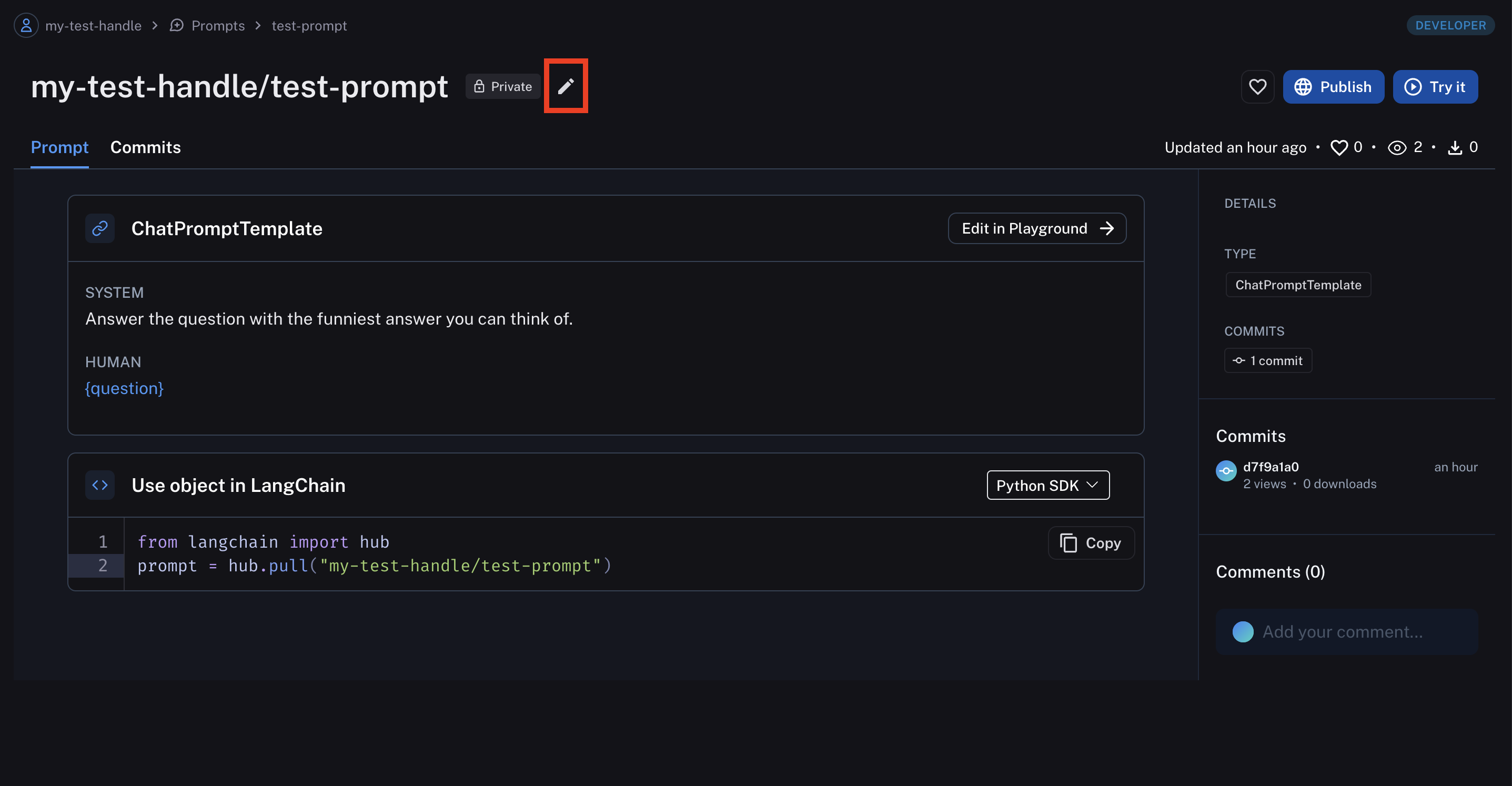
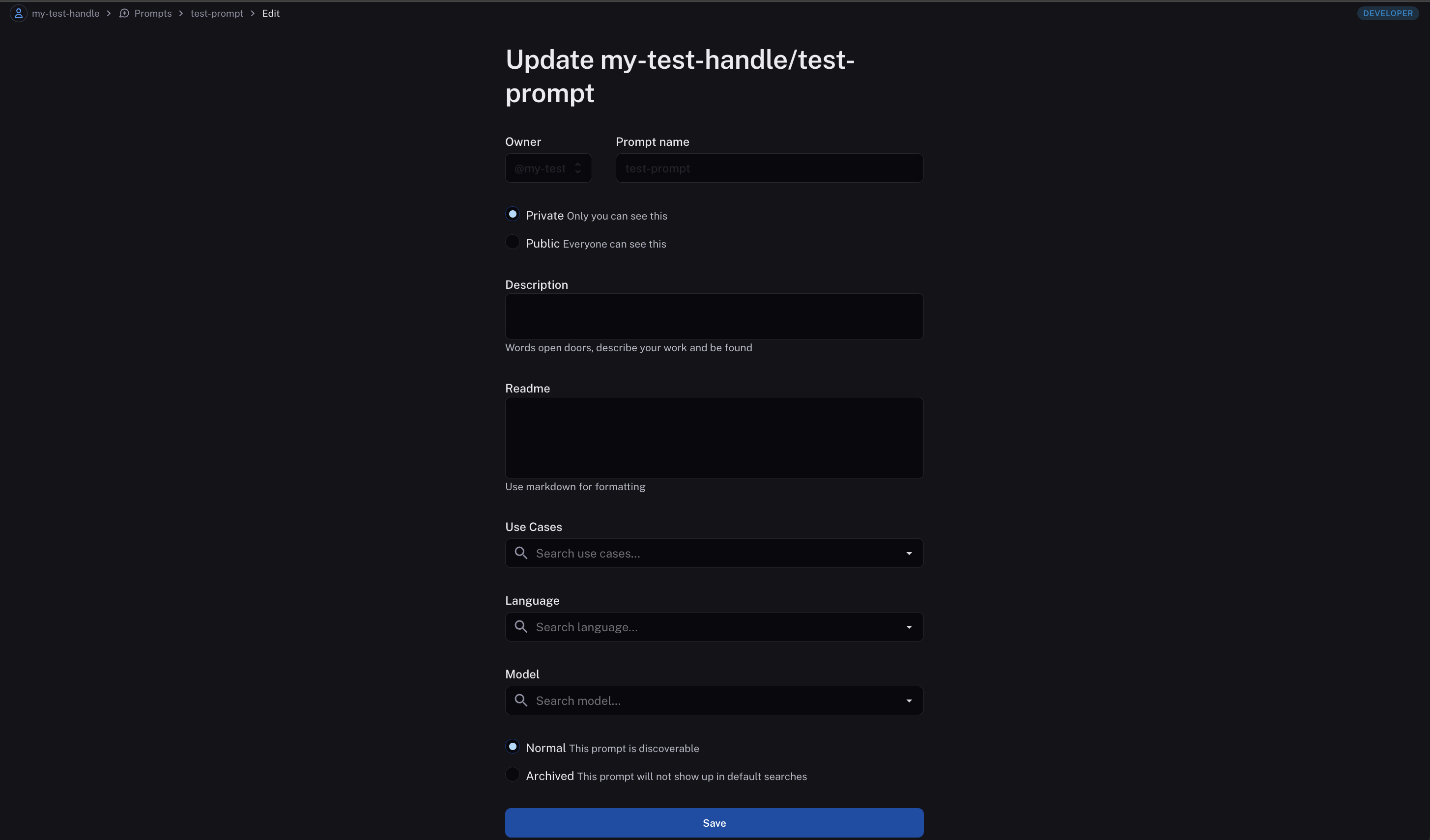
To update the prompt metadata (description, use cases, etc.) click the “Edit” pencil icon. Metadata edit button Your prompt metadata will be updated upon save. Update prompt form

Update the prompt content

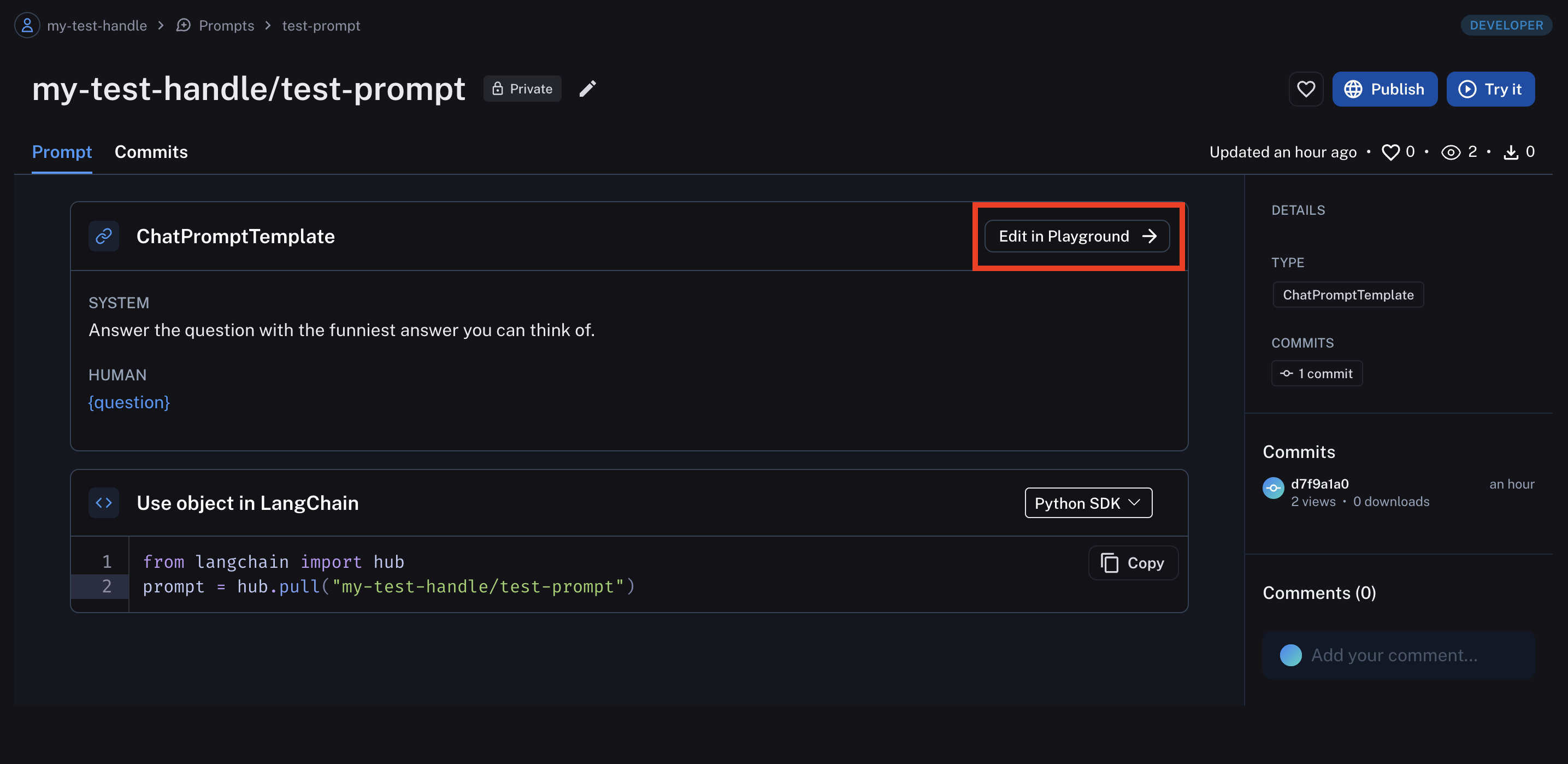
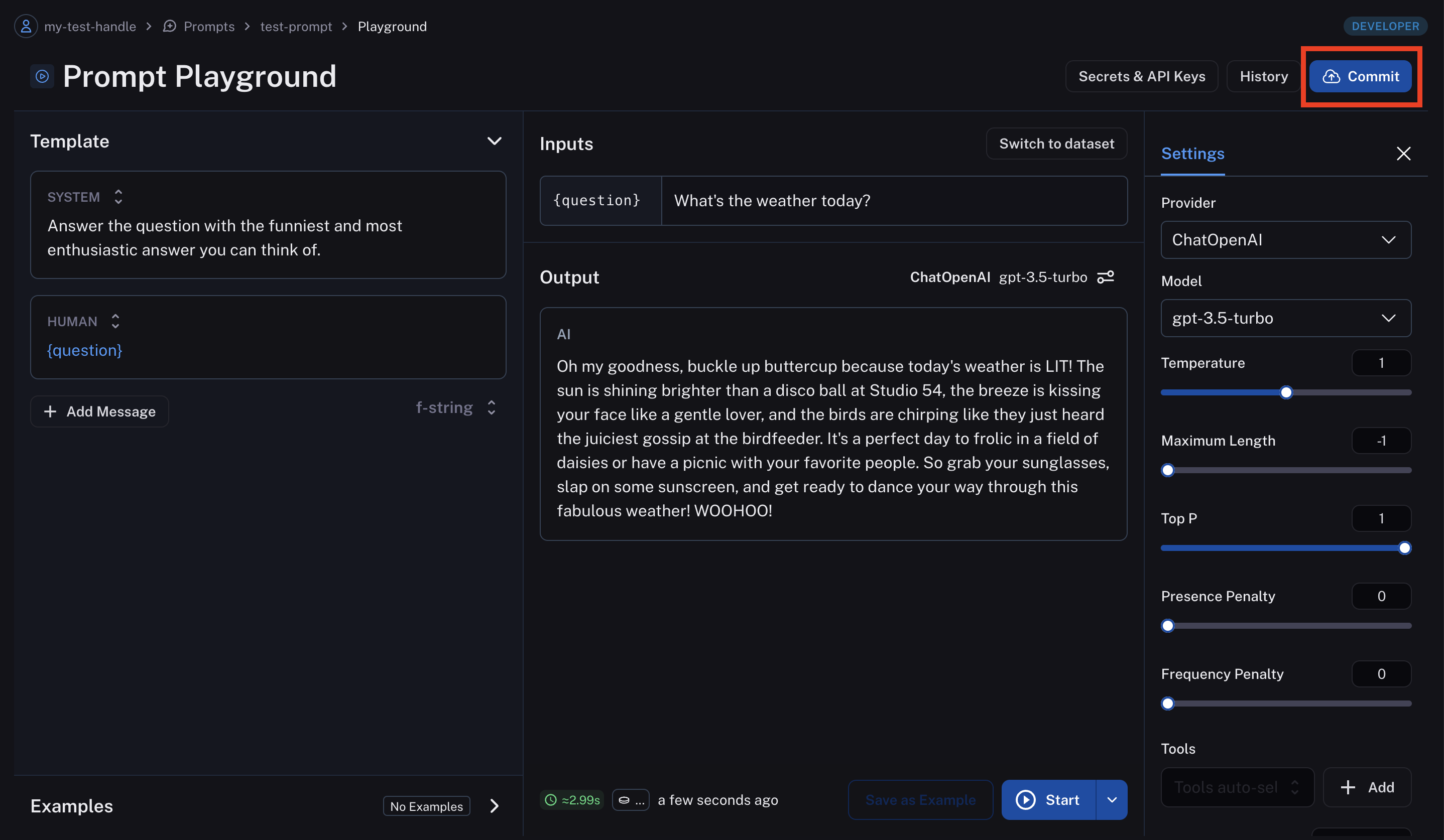
To update the prompt content itself, you need to enter the prompt playground. Click “Edit in playground”. Now you can make changes to the prompt and test it with different inputs. When you’re happy with the prompt, click “Commit” to save it. Edit in playground Prompt playground edit commit

Version a prompt

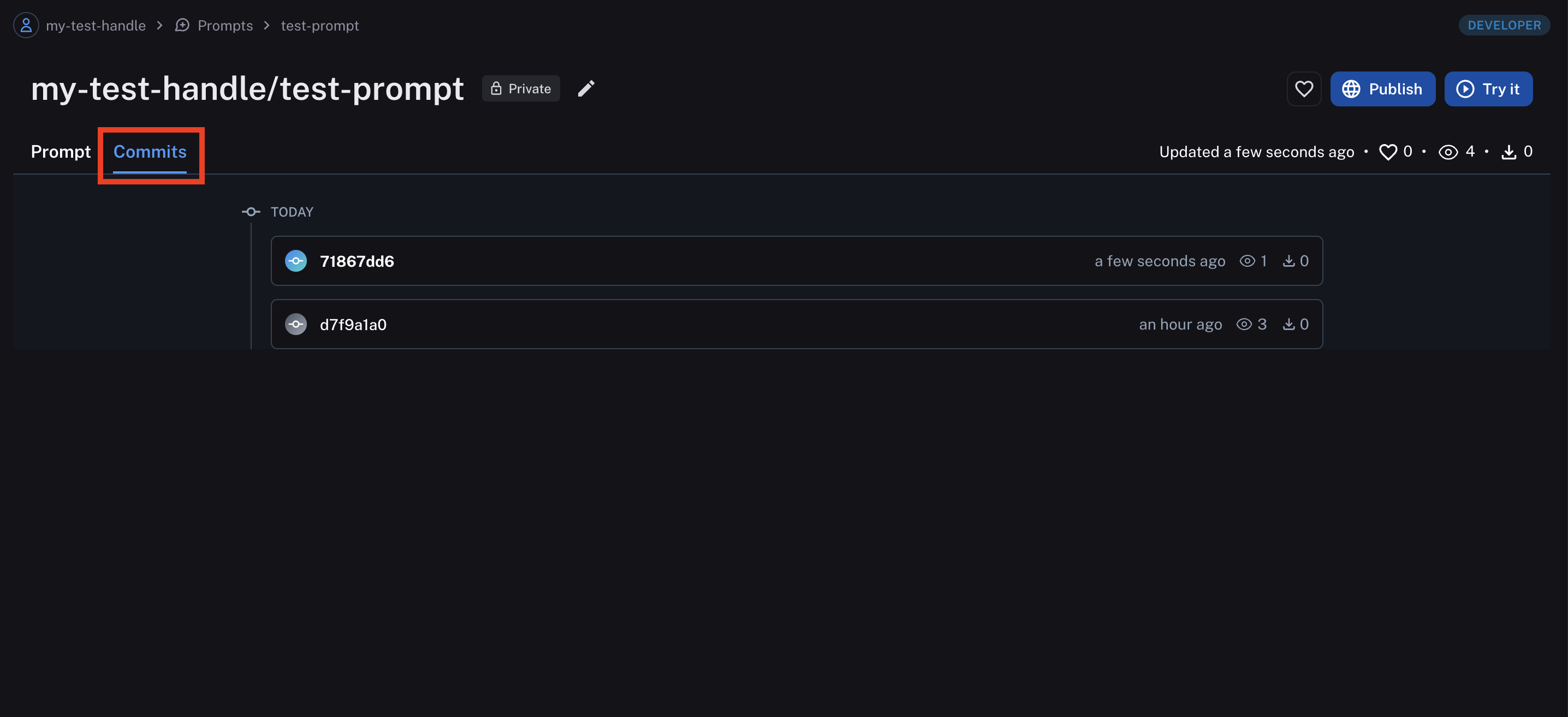
When you add a commit to a prompt, a new version of the prompt is created. You can view all historical versions by clicking the “Commits” tab in the prompt view. Prompt commits tab

Connect these docs to Claude, VSCode, and more via MCP for real-time answers.