

Advanced code evaluators are in beta. They are available at no additional cost during the beta.
Compare advanced and default code evaluators
Create an advanced code evaluator
To create an advanced code evaluator:- Create or open a code evaluator. For more information, see Create the evaluator or Configure online evaluators.
- Select Python or JavaScript as the evaluator language.
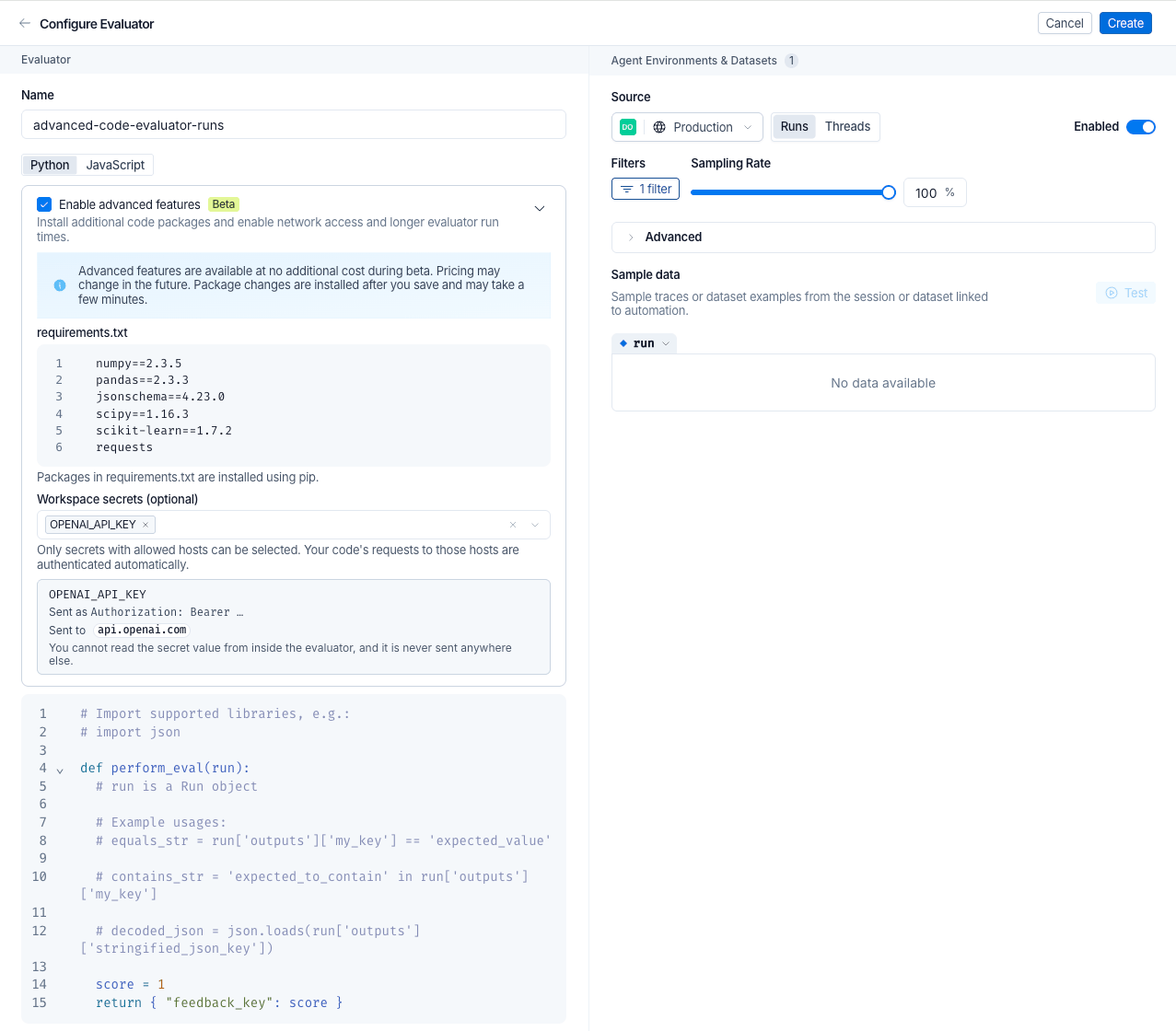
- In the Configure Evaluator pane, select Enable advanced features. The package list appears.
- (Optional) Add packages.
- (Optional) Select workspace secrets for authenticated requests.
- Write your evaluator code, then click Create to save. Saving starts a build.
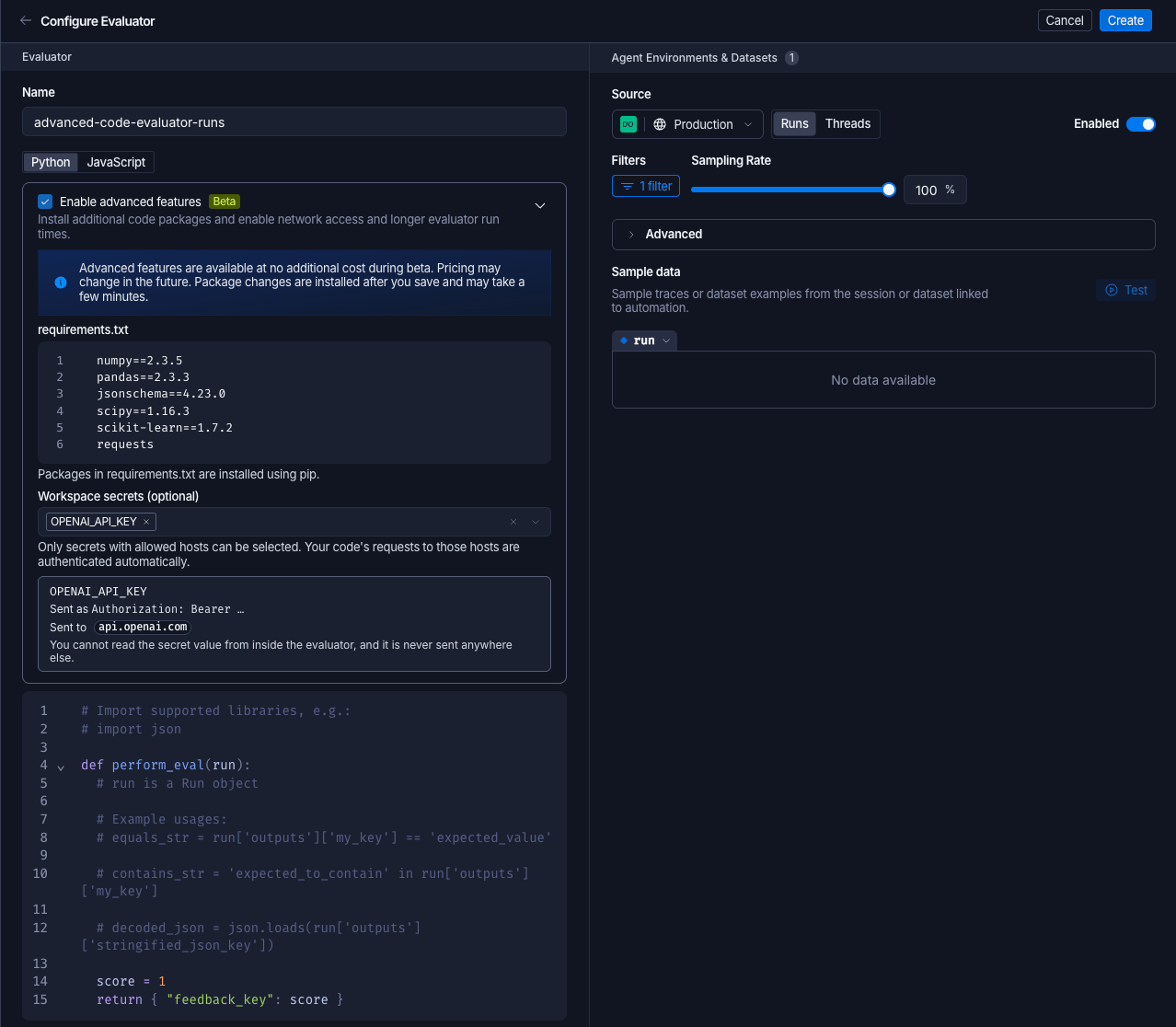
requests added to requirements.txt and the OPENAI_API_KEY workspace secret selected:
Add packages
List the packages your advanced code evaluator imports in the package list. LangSmith installs them into the evaluator’s sandbox when you save.- Python: Add packages to
requirements.txt, one per line. LangSmith installs them with pip. - JavaScript: Add packages under
dependenciesinpackage.json. LangSmith installs them with npm.
import sklearn, add scikit-learn to requirements.txt, not sklearn.
Make network requests
Outbound network requests follow your organization’s sandbox egress policy. Under restricted egress, LangSmith blocks requests to destinations outside the managed allowlist. For more information, see Organization-level restricted egress.Authenticate with workspace secrets
Workspace secrets let an advanced code evaluator call services that require authentication, without putting credentials in the evaluator code. When you select a secret, the sandbox proxy adds it as an HTTP header on HTTPS requests to that secret’s allowed hosts. The secret value never enters the sandbox, so your code cannot read it from an environment variable or anywhere else. To use a workspace secret in an evaluator:- Under Workspace secrets (optional), select one or more secrets. You can select only secrets with allowed hosts. The picker lists each secret’s hosts. To add a secret or allow hosts on one, see Configure allowed hosts for a secret.
- In your evaluator code, send requests to an allowed host without an authentication header. The proxy adds the header to requests to allowed hosts, and sends requests to other hosts without it.
OPENAI_API_KEY comes with default hosts and headers, so when you select it, the following evaluator calls OpenAI without handling the key. Add requests to requirements.txt first:
Configure allowed hosts for a secret
Each workspace secret defines which hosts it can be sent to and in which header. Configuring allowed hosts requires theworkspaces:manage-secrets permission, which workspace admins have by default.
Known provider secrets, such as OPENAI_API_KEY and ANTHROPIC_API_KEY, come with default hosts and headers, so evaluators can use them without further setup. A custom secret has no allowed hosts until an admin adds one, so evaluators cannot select it.
To add a custom secret with allowed hosts:
- Go to Settings > Integrations > Provider secrets. The Allowed hosts column shows each existing secret’s hosts.
- Click + Secret and select Custom.
- Enter the secret’s key and value.
- Add one or more allowed hosts. Enter an exact host, such as
eval-api.example.com, or a leading wildcard, such as*.example.com. - Set the header name and the header value template. The template must contain
{value}, which LangSmith replaces with the secret. For example, useBearer {value}for a bearer token, or{value}to send the raw secret. - Save the secret.
Resolve secret errors
LangSmith checks an evaluator’s secrets when you save the evaluator and again each time it runs, because an admin can edit or delete a secret after you select it. When a check fails, LangSmith rejects the save, or fails the evaluation instead of running it without authentication.
To fix missing hosts or headers, ask a workspace admin to configure allowed hosts for the secret. To fix a header conflict, remove one of the secrets from the evaluator.
Failed evaluations show an error on the run’s feedback and on the Logs tab of the evaluator’s detail view.
Use a service key for production
For production evaluators that call the LangSmith API, save the code using a workspace-scoped service key. The evaluator then runs as a service account rather than a person, so its access does not depend on that person’s account.Save an evaluator with a service key
To save an evaluator with a service key:- Ask an organization admin to create a service key scoped to the evaluator’s workspace. Give it only the permissions your evaluators need.
- Choose an expiration date that matches your key rotation policy.
- Write and test the evaluator in the LangSmith UI as usual.
- Save the evaluator’s code again through the API, authenticated with the service key. Sending the current code unchanged is enough:
POST /api/v1/platform/evaluators.
Handle key and permission changes
Write the evaluator function
Advanced code evaluators accept the same function as default code evaluators. Aperform_eval(run, example) function in Python or a performEval function in JavaScript works unchanged. For the full contract, see Write your evaluator code.
You can also define evaluate(ctx), which LangSmith calls in preference to perform_eval or performEval when both exist. The ctx object exposes the run as ctx.run and the dataset example, when there is one, as ctx.example. Return the same dictionary of feedback keys and scores:
Score runs with a decision model
An advanced code evaluator can combine custom logic, public packages, and network calls in one function. The following evaluator shortens a run’s inputs and outputs, then asks a decision model through the LLM Gateway whether the output answers the input. LangSmith authenticates the evaluator’s calls to the LLM Gateway, so this evaluator needs no workspace secret or API key. When the LLM Gateway is available, LangSmith sets the gateway URL in theLANGSMITH_GATEWAY_ENDPOINT environment variable in the sandbox.
Add typesafe-sdk to requirements.txt:
score and a comment, so LangSmith saves the score as feedback under the evaluator’s name, with the model name as the comment.
Build and test the evaluator
Saving an advanced code evaluator starts a build that installs your packages and prepares the sandbox ahead of time, so each evaluation starts without installing them again. The Building evaluator banner shows while the build runs, which usually takes less than a minute. You cannot edit or delete the evaluator until the build finishes. When the build finishes, the evaluator status is Ready and Test becomes available. Test appears only after you attach the evaluator to a source with sample data: a dataset with at least one experiment or traces with at least one recent successful run. Test uses the last saved build, so save any edits before you test. Testing in the UI runs the evaluator as you, so a passing test does not confirm the service key has enough access. After saving with the service key, check for403 errors when the evaluator runs on your data.
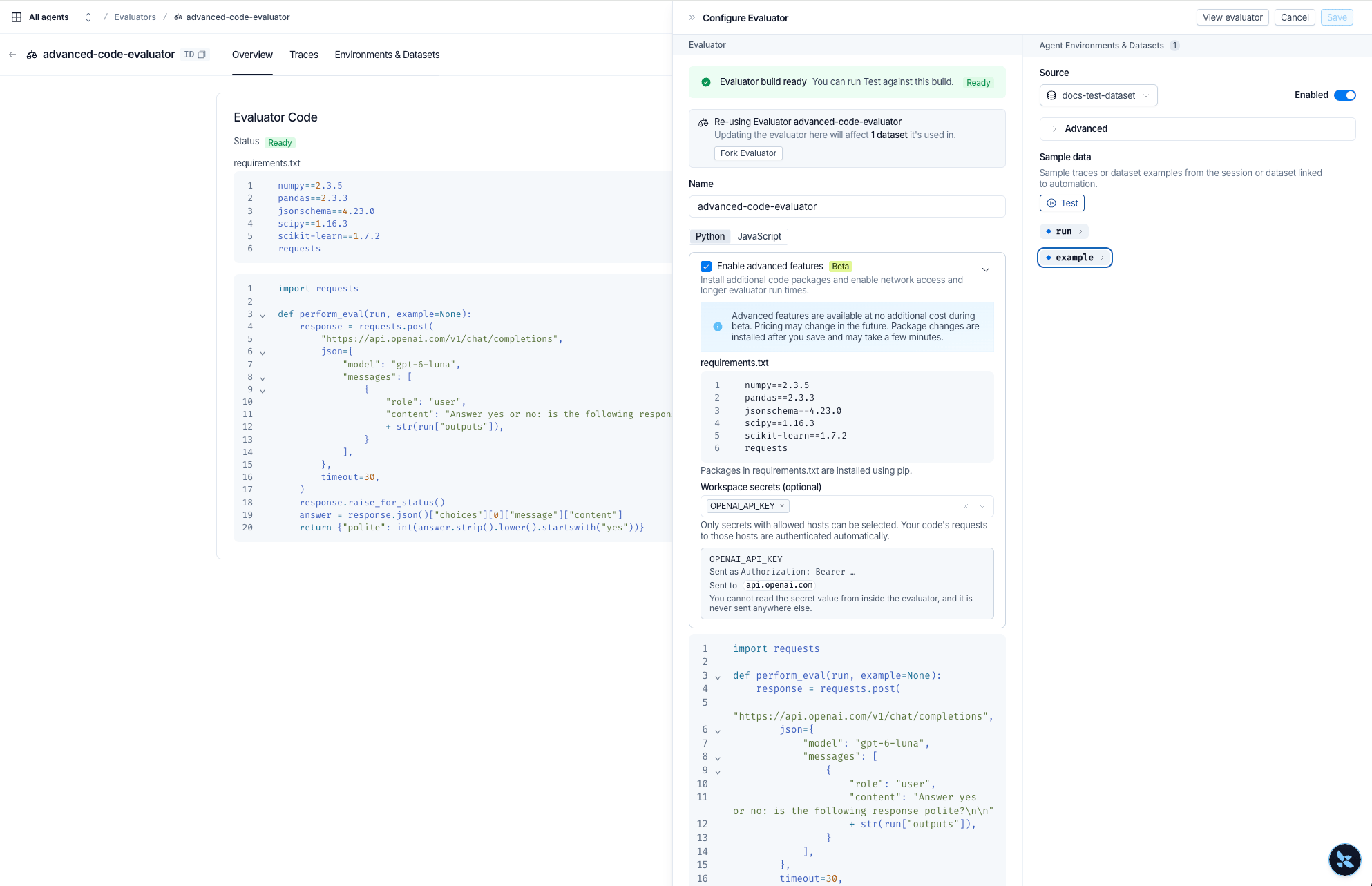
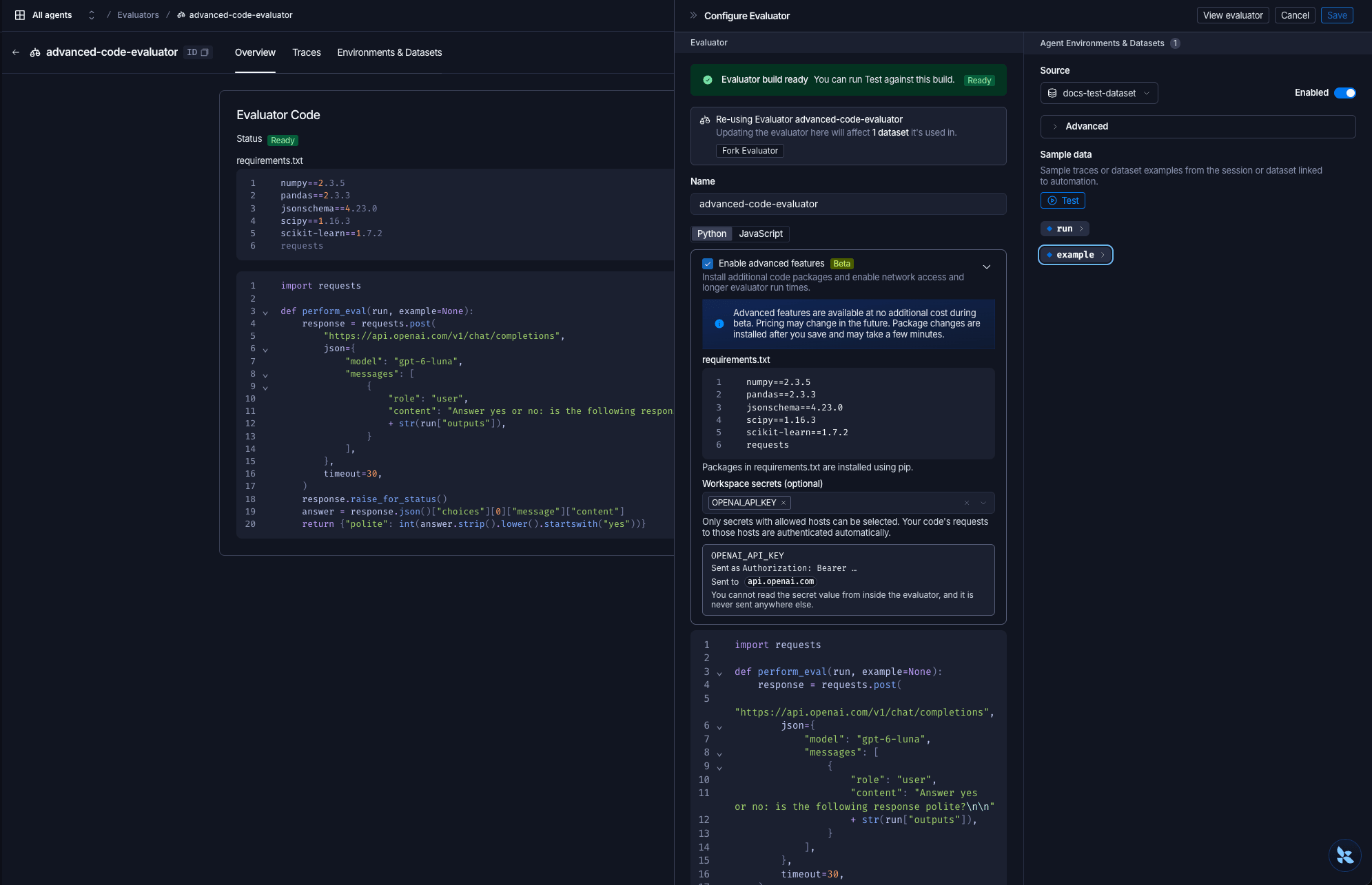
After a successful build, the pane shows the Evaluator build ready banner, and Test is available under Sample data:
pip install failed: or npm install failed:, followed by the installer output. Fix the package list or code, then save again to rebuild.
Keep scoring during a rebuild
Once an advanced code evaluator has built successfully, LangSmith keeps scoring runs with that build while a new build runs, and after a new build fails. The new build takes over when it succeeds, so feedback continues without a gap. To stop the previous version immediately, for example because it produces wrong scores:- Open the evaluator’s Configure Evaluator pane.
- Under Source, select a source and turn off Enabled.
- Repeat for each source the evaluator is attached to.
- Click Save.
- Online evaluators wait and evaluate the runs after the build completes.
- Experiment evaluations, such as Playground experiments, write error feedback such as
Code evaluator is not ready yet (build status: BUILDING). - If the first build fails and no build is in progress, every run gets error feedback so the failure is visible.
Evaluate threads
A thread evaluator scores a whole conversation thread instead of a single run, and writes its feedback to the latest root run in the thread. Thread evaluators run as online evaluators on your traces and must be advanced code evaluators. For how LangSmith decides when a thread is complete, see Set up multi-turn online evaluators. To create a thread evaluator:- In the Configure Evaluator pane of an online evaluator, select Enable advanced features. The Threads option is unavailable until you do.
- In the Runs / Threads toggle, select Threads.
- Under Evaluator input, select the input your evaluator receives.
- Define an
evaluate(ctx)function that reads the selected input fromctx. Thread evaluators do not supportperform_evalorperformEval. - Click Create.
- Once the build is done, click Test.
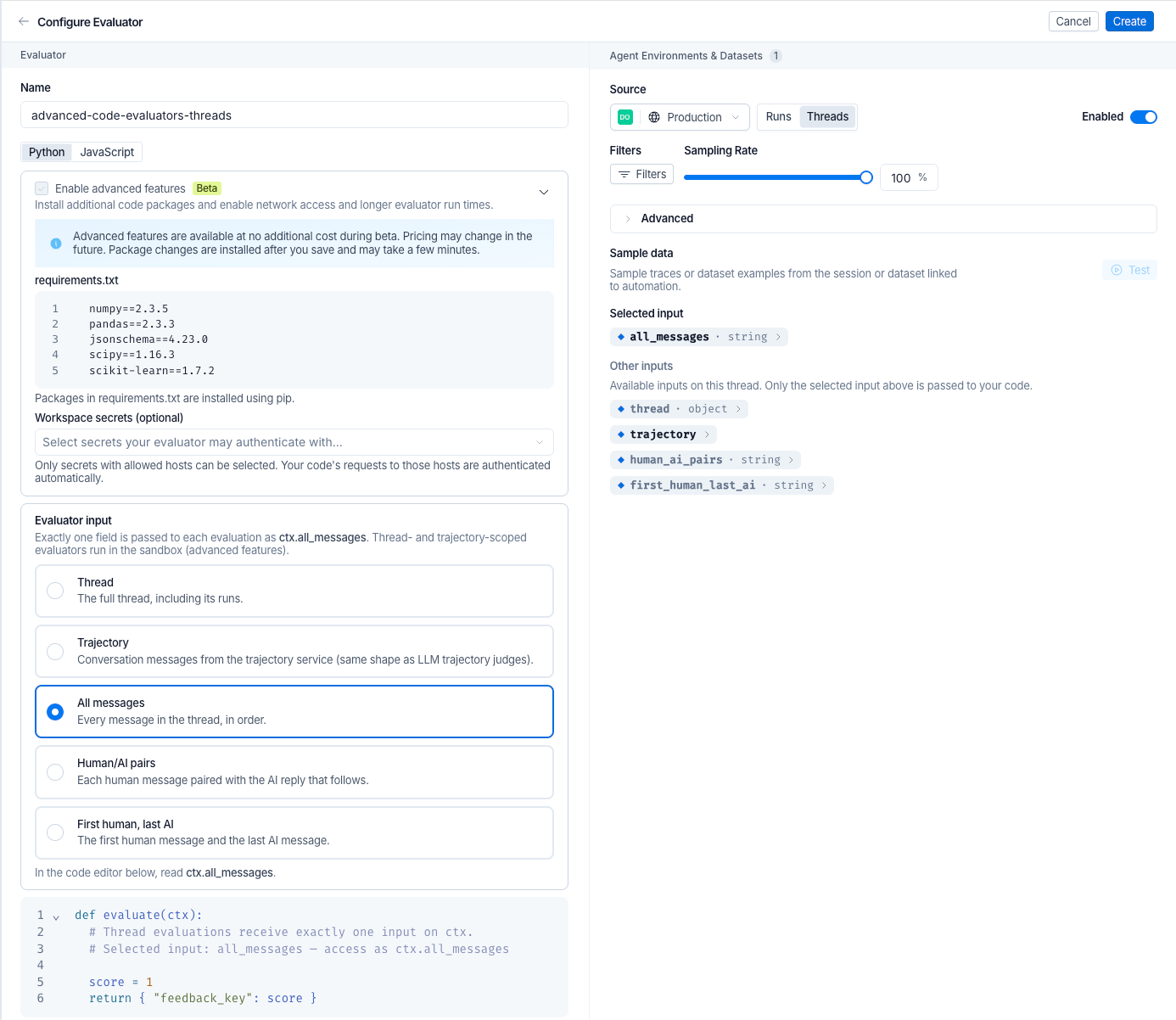
- Thread (
ctx.thread): The full thread as an object, withthread_id,session_id, and the thread’sruns. - Trajectory (
ctx.trajectory): The thread’s trajectory as an object. Read its messages, including the tool calls and tool results from child runs, withctx.trajectory["messages"]. - All messages (
ctx.all_messages): Every message in the thread, in order, as a string. This is the default. - Human/AI pairs (
ctx.human_ai_pairs): Each human message paired with the AI reply that follows, as a string. - First human, last AI (
ctx.first_human_last_ai): The first human message and the last AI message, as a string.
The Trajectory input is available on LangSmith Cloud. Self-hosted installations need LangSmith v0.17 or later, with queries switched to SmithDB. For how a trajectory differs from the other thread inputs, see Evaluate trajectories.Once you save an evaluator, you cannot switch it between Trajectory and the other inputs. To change it, create a new evaluator.
See also
Connect these docs to your agent of choice via MCP for real-time answers.