

Open the comparison view
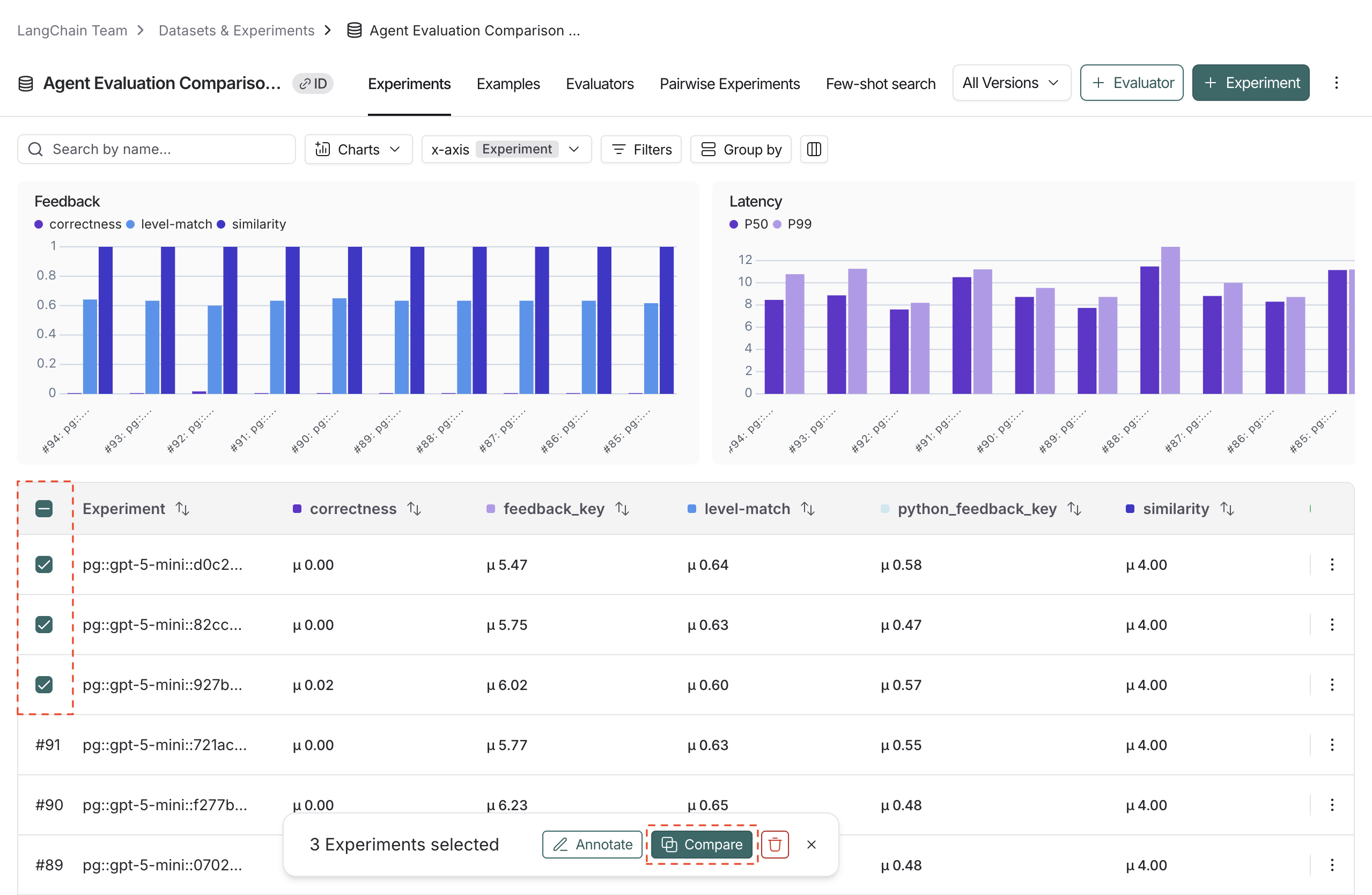
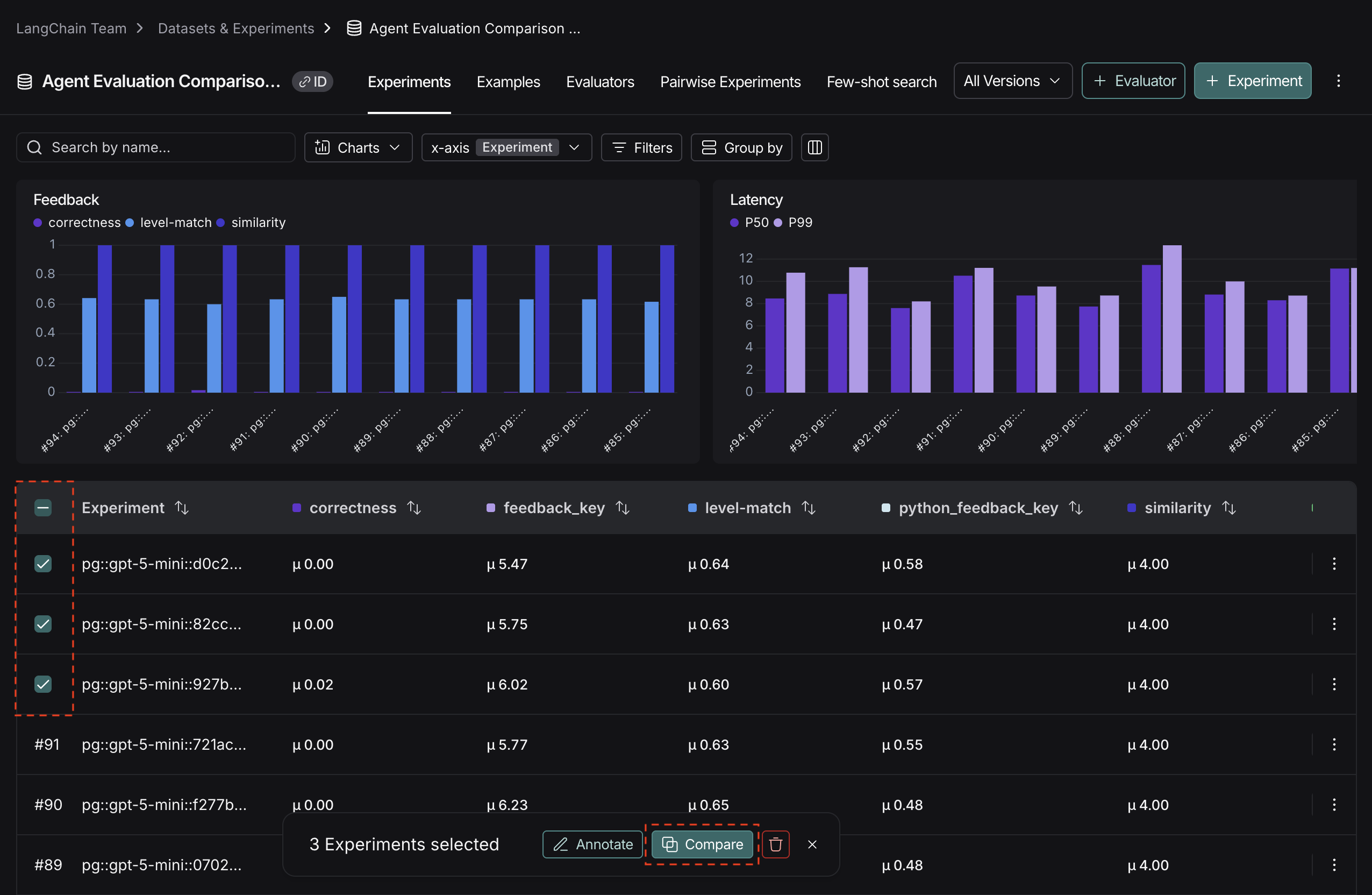
- To access the experiment comparison view, navigate to the Datasets & Experiments page.
- Select a dataset, which will open the Experiments tab.
- Select two or more experiments and then click Compare.
Adjust the table display
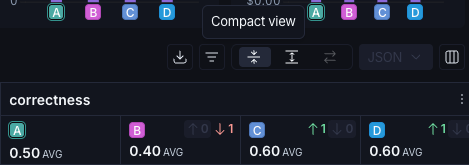
You can toggle between different display options on the top right of the comparison view.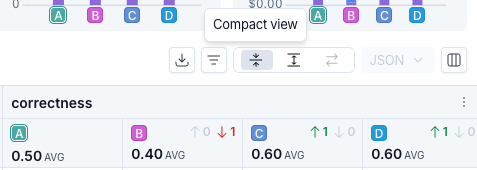
Filters
Click the icon to apply filters to the comparison view to narrow down specific examples. Common examples for filters include:- Examples that contain specific
input/output. - Runs with status
successorerror. - Runs that take more than x seconds in
latency. - Specific
metadata,tag, orfeedback.
Columns
Click the icon to show or hide individual feedback keys or metrics in the comparison view.Table views
Select one of three table view icons at the top right of the comparison view:- Compact: Shows a preview of the experiment results for each example.
- Full: Shows the full text of the input, output, and reference output for each run. If the output is too long to display in the table, you can click Expand to view the full content.
- Diff: Shows the text difference between experiment outputs for each run. This is only supported for 2 experiments at a time. See View side-by-side diffs for more details.
Display types
There are three built-in experiment views that cover several display types: Default, YAML, JSON.View regressions and improvements
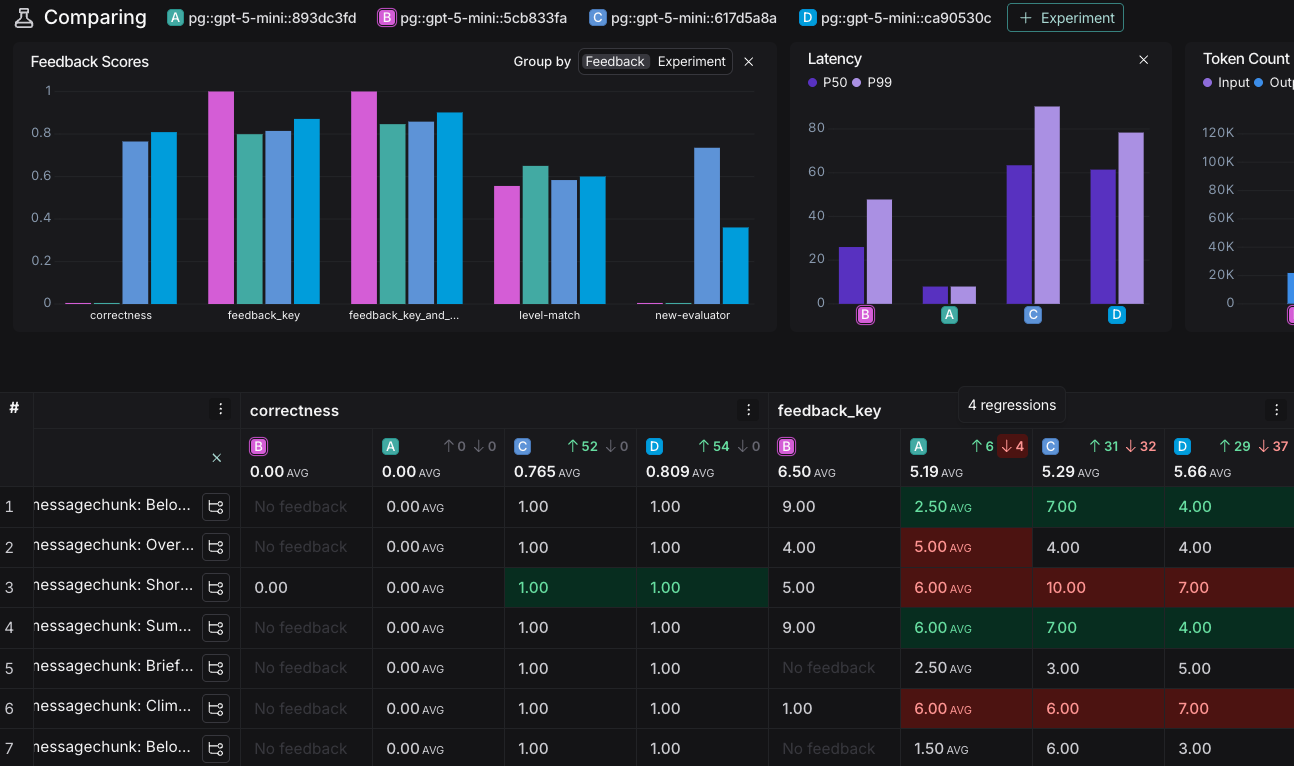
In the comparison view, red highlights runs that regressed on any feedback key against your source experiment, while green highlights runs that improved. At the top of each feedback column, you can see how many runs did better or worse than your source experiment. Click the regression or improvement buttons at the top of each column to show only runs that regressed or improved in that experiment.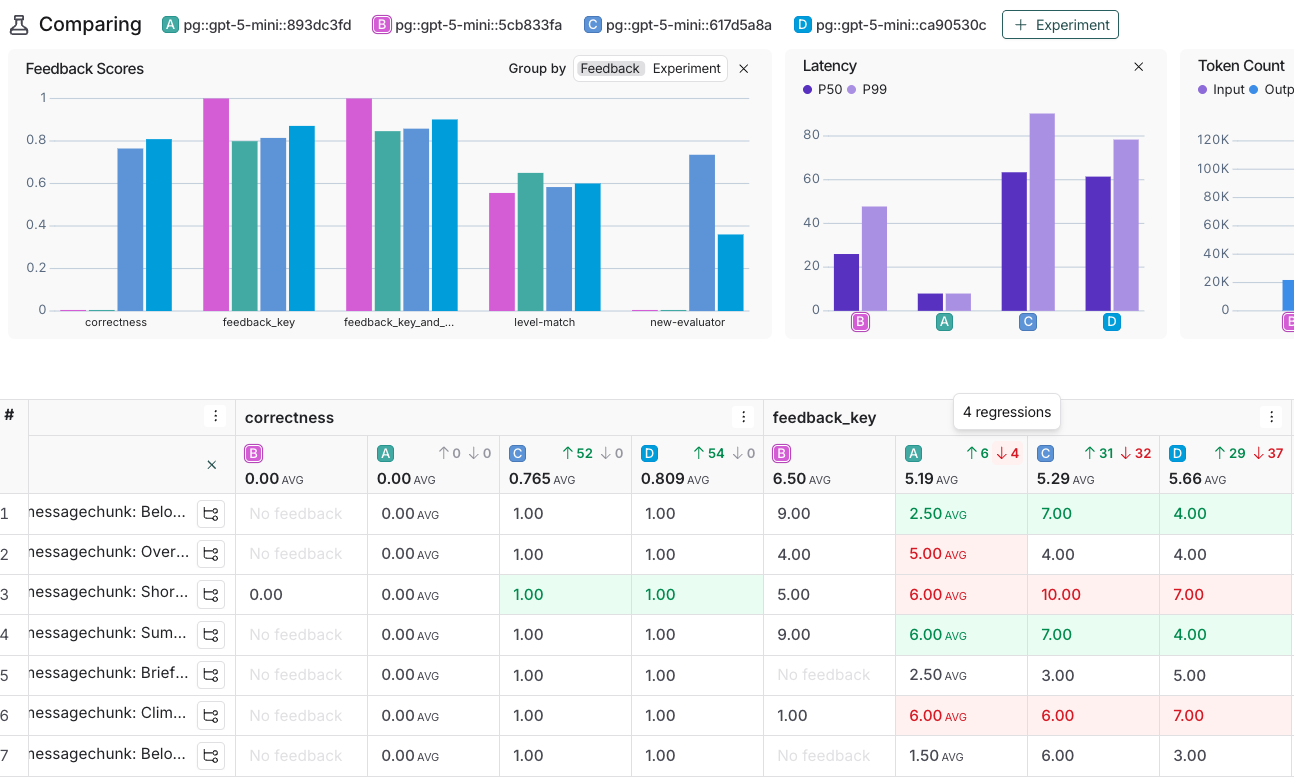
View side-by-side diffs
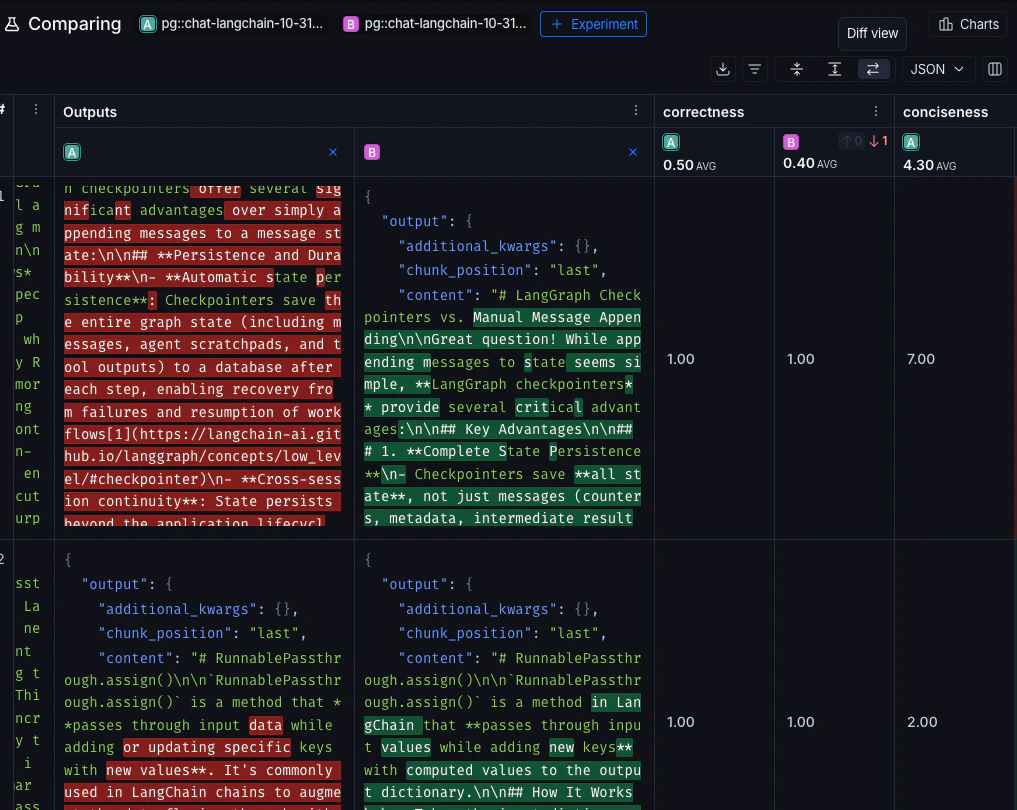
When comparing two experiments, for JSON and YAML display styles, you can toggle on the experiment diff mode to compare experiment outputs. The diff mode highlights modifications between outputs, and can be particularly useful for structured output comparisons.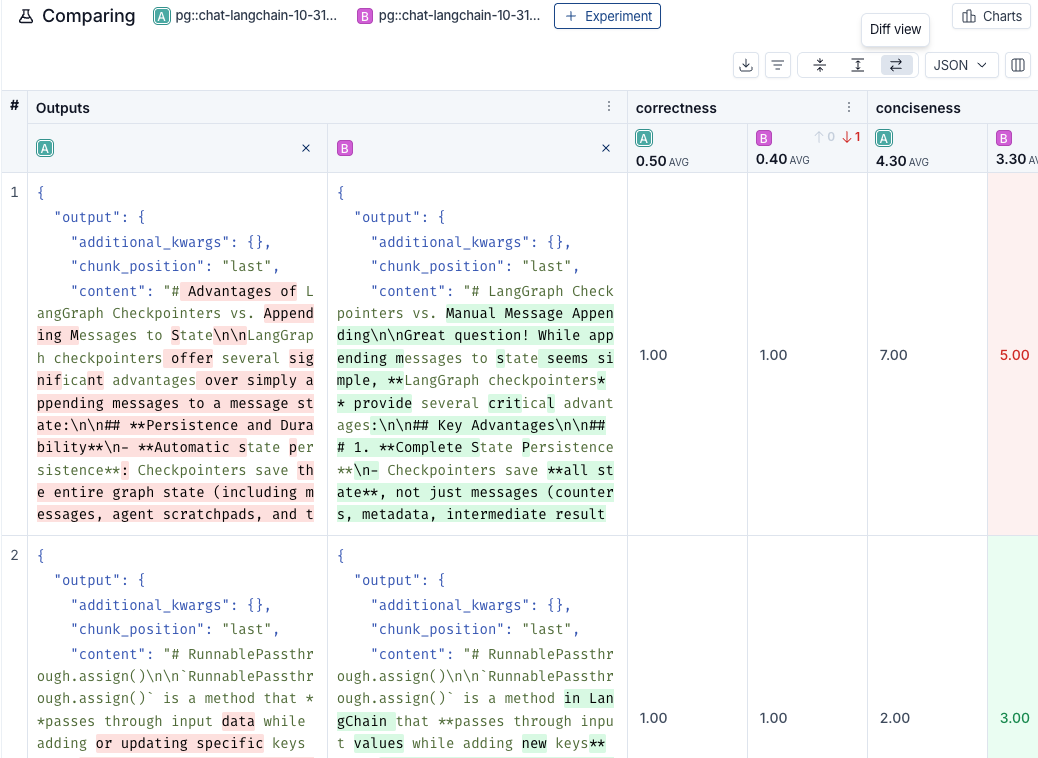
Update source experiment and metric
To track regressions across experiments, you can:-
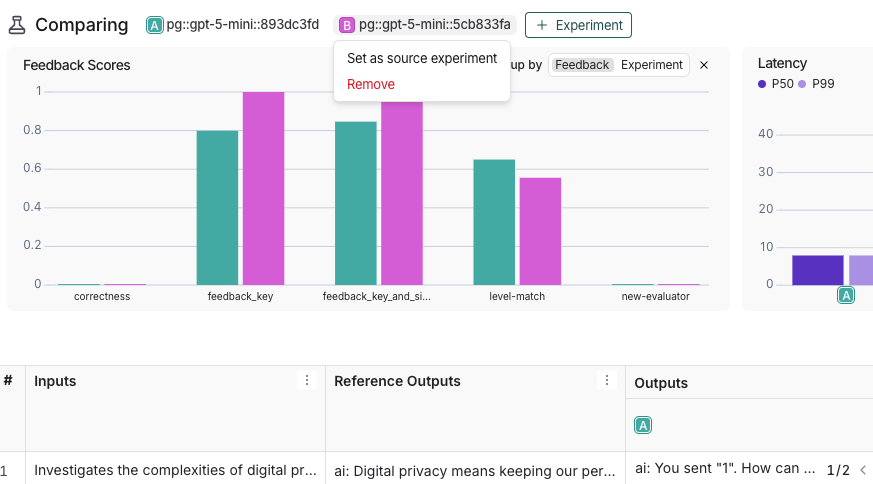
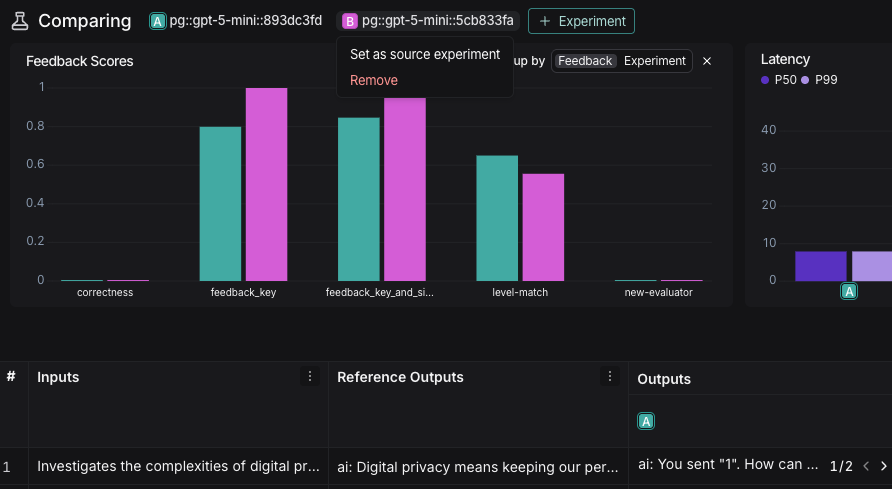
At the top of the comparison view, hover over an experiment icon and select Set as source experiment from the dropdown. You can also add or remove experiments from this dropdown. By default, the first selected experiment is set as the source.
-
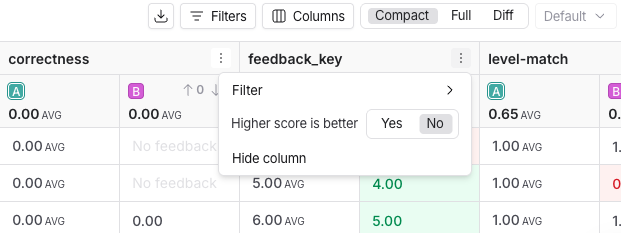
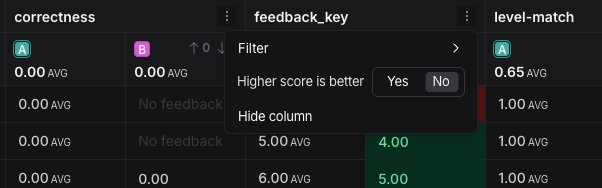
Within the Feedback columns, you can configure whether a higher score is better for each feedback key. This preference will be stored. By default, a higher score is assumed to be better.
Expand details panel
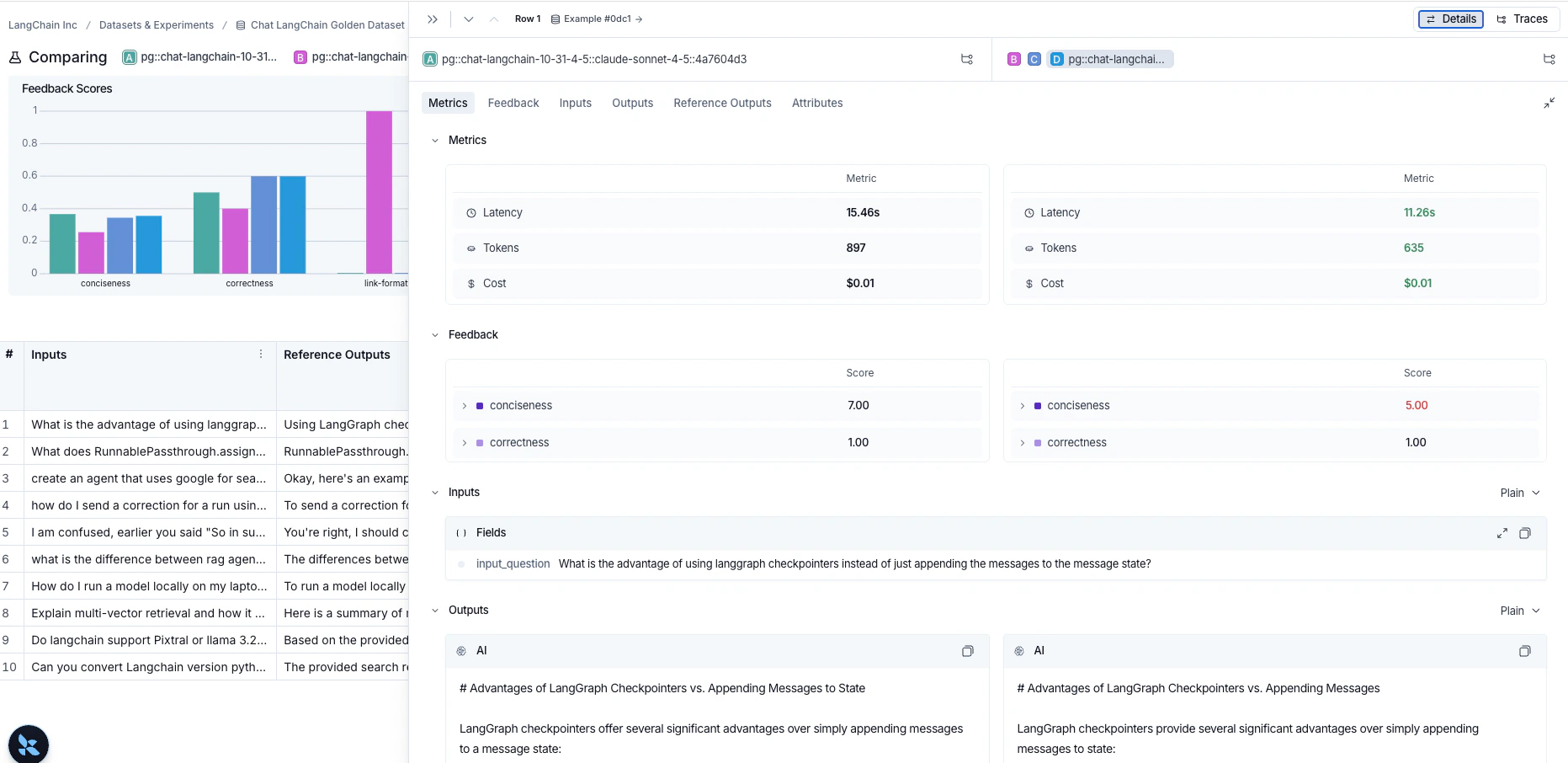
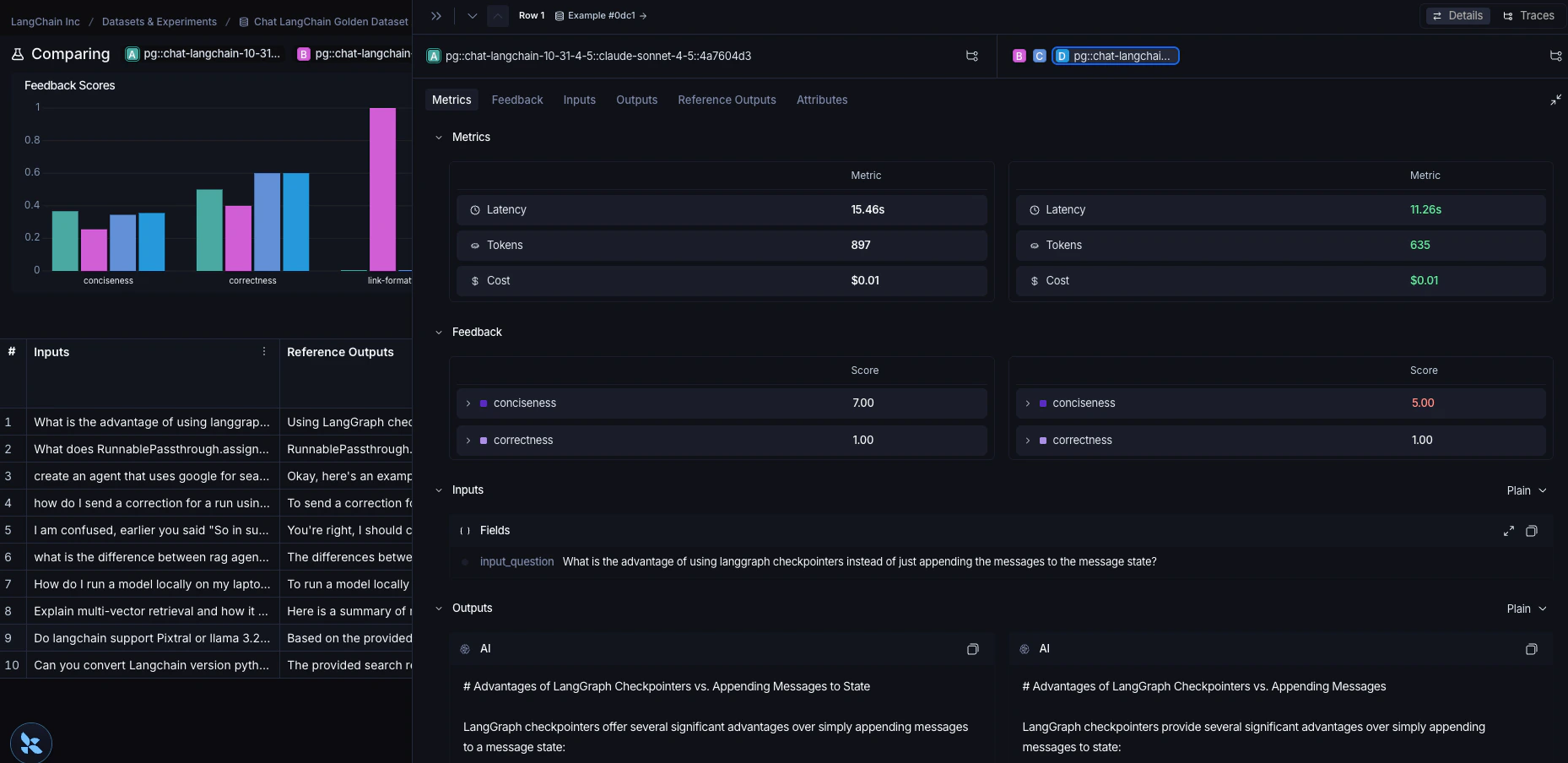
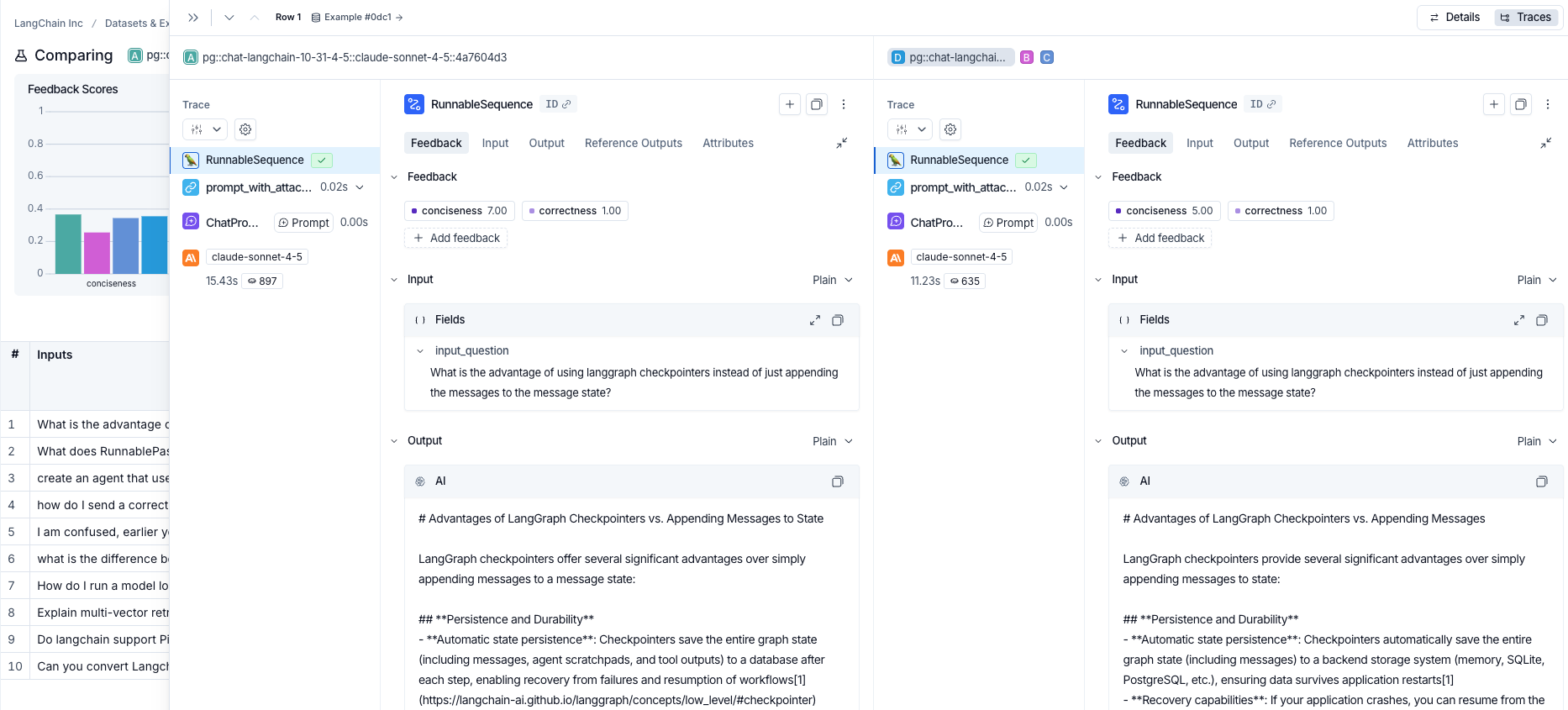
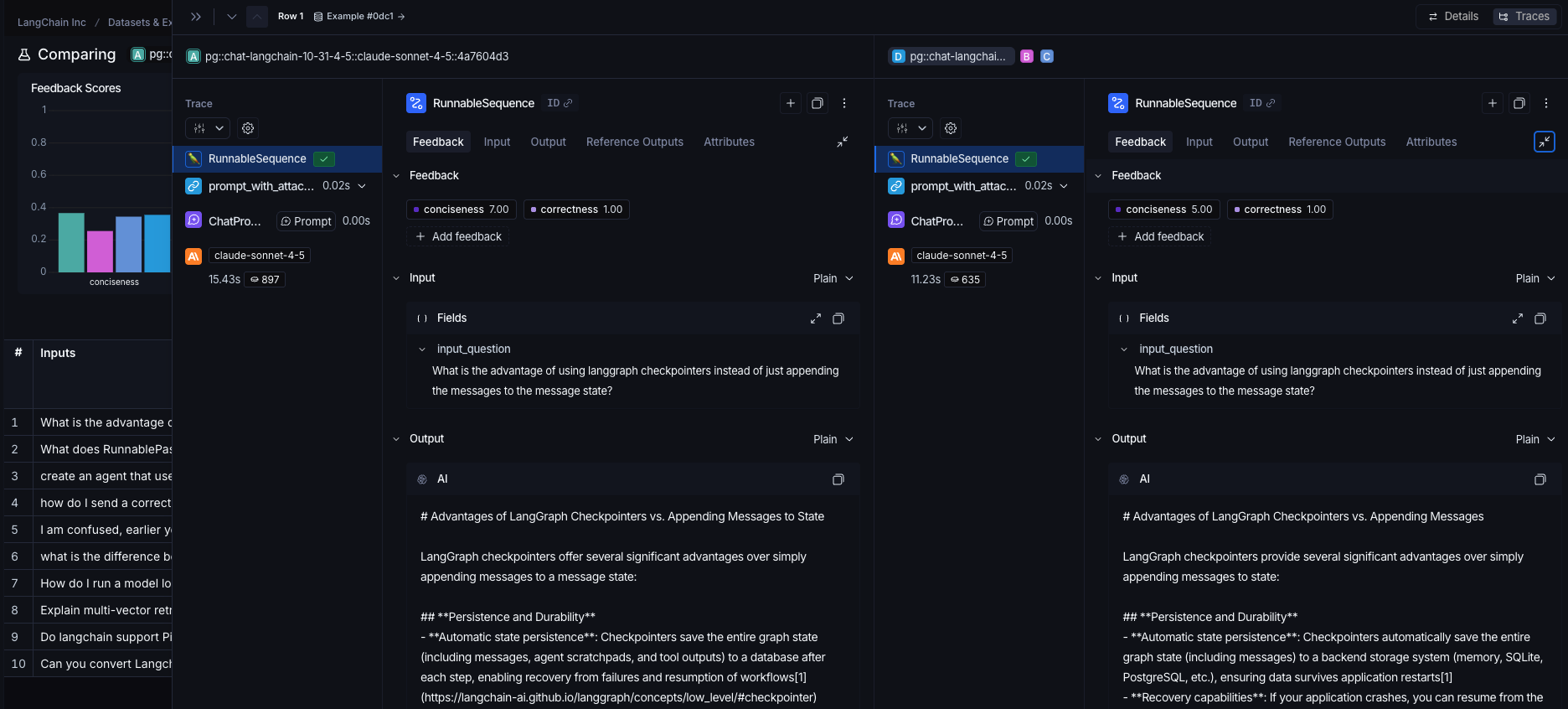
Click on any row to open a details panel for that example for the compared experiments. Use the toggle in the top right of the panel to switch between two modes:-
Details: Shows feedback keys and scores, along with a metrics summary for the example, as well as the input, output, and reference output, and attributes for each experiment.
-
Traces: Shows traces for each experiment side by side.
Use experiment metadata as chart labels
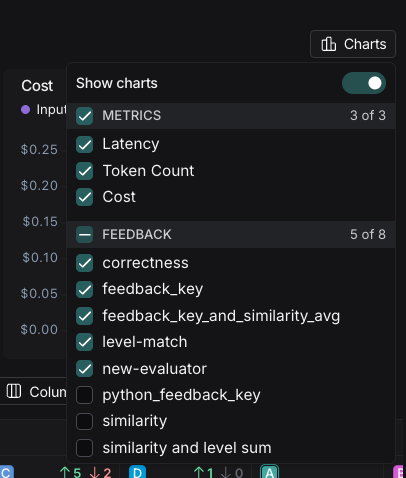
You can configure the x-axis labels for the charts based on experiment metadata. Select a metadata key from the Charts dropdown at the top-right of the comparison view to change the x-axis labels.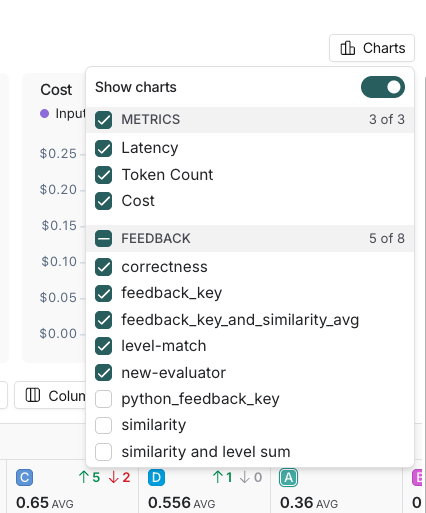
Connect these docs to your agent of choice via MCP for real-time answers.