

Prerequisites
Before you begin, ensure you have the following:- A LangSmith account: Sign up (for free) or log in at smith.langchain.com.
- A LangSmith API key: Follow the Create an API key guide.
- If you don’t want data traced to LangSmith, set
LANGSMITH_TRACING=falsein your application’s.envfile. With tracing disabled, no data leaves your local server.
Set up local Agent server
1. Install the LangGraph CLI
The LangGraph CLI provides a local development server (also called Agent Server) that connects your agent to Studio.2. Prepare your agent
If you already have a LangChain agent, you can use it directly. This example uses a simple email agent:agent.py
3. Environment variables
Studio requires a LangSmith API key to connect your local agent. Create a.env file in the root of your project and add your API key from LangSmith.
.env
4. Create a LangGraph config file
The LangGraph CLI uses a configuration file to locate your agent and manage dependencies. Create alanggraph.json file in your app’s directory:
langgraph.json
create_agent function automatically returns a compiled LangGraph graph, which is what the graphs key expects in the configuration file.
For detailed explanations of each key in the JSON object of the configuration file, refer to the LangGraph configuration file reference.
5. Install dependencies
Install your project dependencies from the root directory:6. View your agent in Studio
Start the development server to connect your agent to Studio:http://127.0.0.1:2024 and through the Studio UI at https://smith.langchain.com/studio/?baseUrl=http://127.0.0.1:2024:
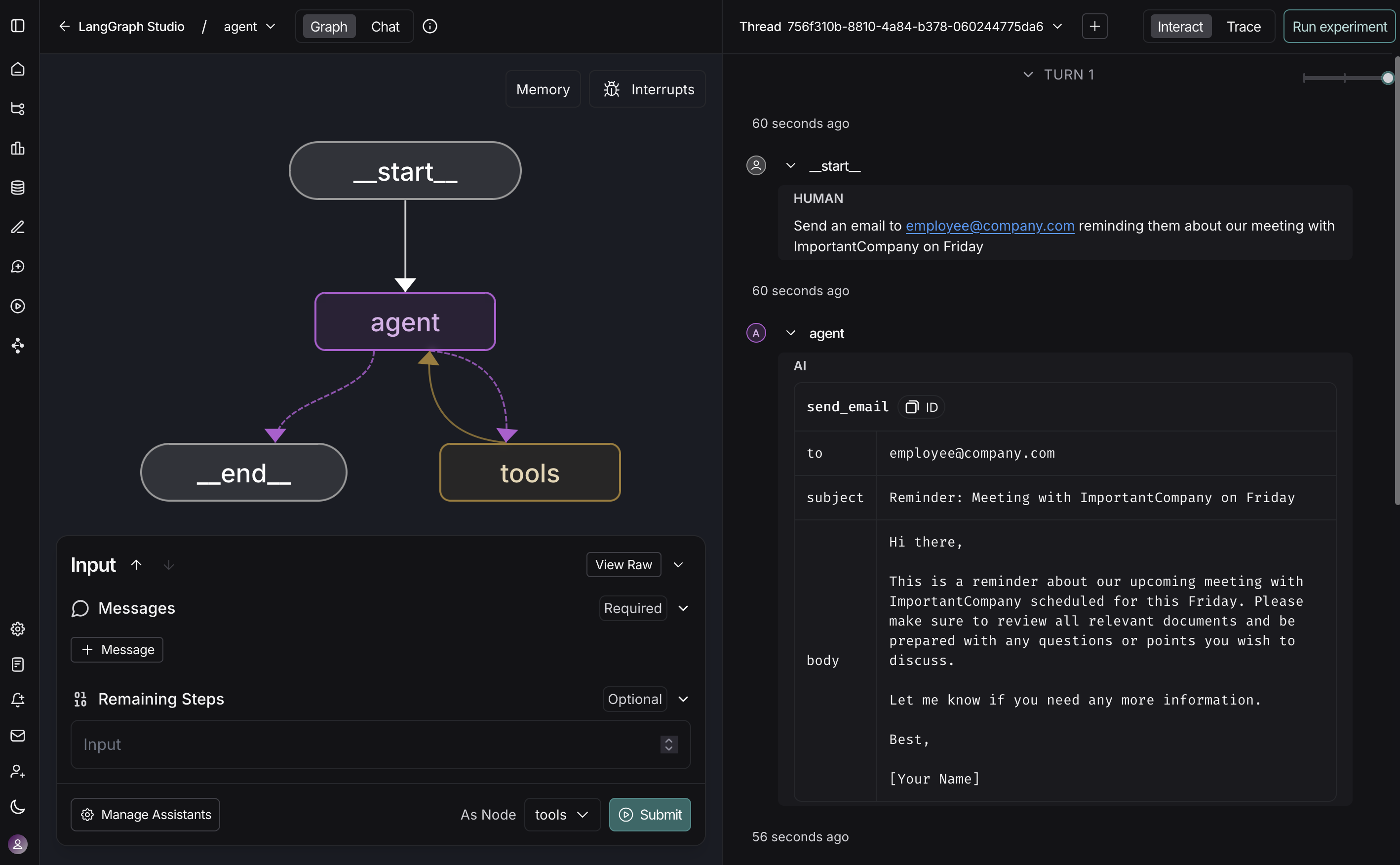
- Run application
- Manage assistants
- Manage threads
- Iterate on prompts
- Debug LangSmith traces
- Add node to dataset
Video guide
Connect these docs to your agent of choice via MCP for real-time answers.